HomeHardwareFeatures
Xbox Cloud Gaming for Steam Deck makes Game Pass games portable, but needs workStream Deck
Stream Deck
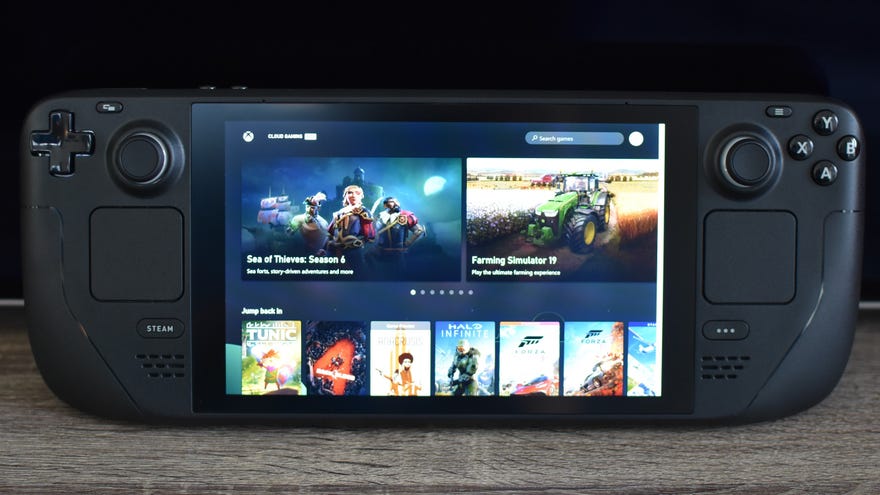
After having gone through the lengthy setup process (explained below, if you want to try streaming Game Pass games on the Steam Deck yourself) and playing for a while, I can say it’s a good enough start in bringing Microsoft’s library to Valve’s handheld. Between this and theEpic Games Launcher, it’s a relief that the Deck’s default SteamOS won’t be limited to Steam games after all. Still, a beta is a beta, and there are very much some kinks to work out.
Elden Ring On Steam Deck - Proton Update Improves PerformanceWatch on YouTube
Elden Ring On Steam Deck - Proton Update Improves Performance

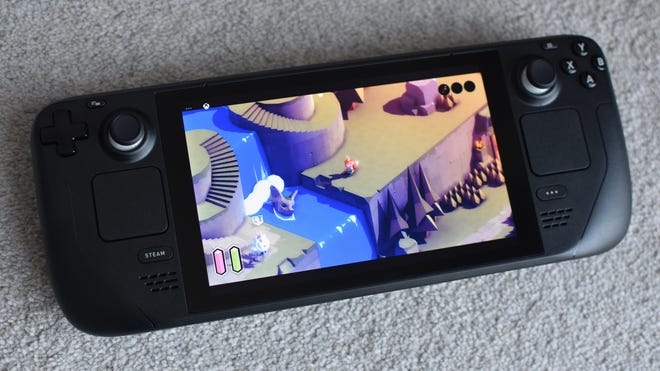
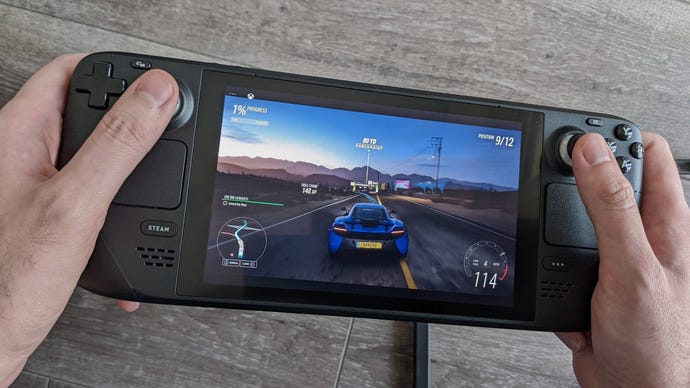
Happily, Microsoft’s senior program manager Ben Mathwig has alreadytweetedthat the installation process will get much simpler in time. And in fairness, when it works, Xbox Cloud Gaming on the Steam Deck works well. Games aren’t quite as sharp as they’d be when running natively but I never had any problems reading small text. The newly-launchedTunicruns at a slick 60fps, and whileForza Horizon 5is limited to 30fps, it actually looks decent with a dab of motion blur.
It’s also hard to shift the thought that Microsoft’s efforts might be better spentworking with Valveon a way to get Game Pass games installable and playable on the Steam Deck locally. This is, after all, a portable handheld, and streaming features are useless when you’re carrying it outside of dependable Wi-Fi range. And because Xbox Cloud Gaming requires a Game Pass Ultimate subscription, anyone with a cheaper PC Game Pass subscription will miss out anyway.
Image credit:Rock Paper Shotgun
Conversely, streaming does help cope with a weakness of the hardware: its small internal storage capacities.One month with the Steam Deckhas taught me that you can’t really avoid expanding it with a microSD card, but the cloud approach grants instant access to dozens of games with no additional storage strain. So streaming makes sense as an option, even if native support is usually more ideal.
Personally, I can live with a bit of jank if there’s a good time to be had behind it, and Xbox Cloud Gaming for the Steam Deck is at least heading in that direction. It does need some big work on some big problems, and that simplified setup process would be appreciated, but hopefully that’s all part and parcel of being an unfinished beta. In a better state, there’s no doubt that having Game Pass on the Steam Deck will be a very, very big deal.
If, however, you have a Deck now and just can’t wait…
How to get Xbox Cloud Gaming on the Steam Deck
The good news is that this won’t require any deep-diving Linux knowledge, and can all be done using the Steam Deck’s trackpads and on-screen keyboard. However, Microsoft recommends plugging in a physical mouse and keyboard to make it all easier, and I’m inclined to agree; for that you will need a USB-C hub so both peripherals can connect at once. Also, as just one last reminder, Xbox Cloud Gaming requires the highest Game Pass subscription tier available, Game Pass Ultimate (£10.99 per month). The standard PC Game pass (£7.99 per month) doesn’t include game streaming.
The bulk of this setup process involves installing and tweaking a beta version of Microsoft Edge. Why? It’s because a) Xbox Cloud Gaming needs a browser and b) other Linux-compatible browsers won’t recognise the Steam Deck’s controls. The Edge beta will, and these steps will show you exactly how to prep it so that you can launch right into Xbox Cloud Gaming from your Steam library.
Image credit:Rock Paper Shotgun
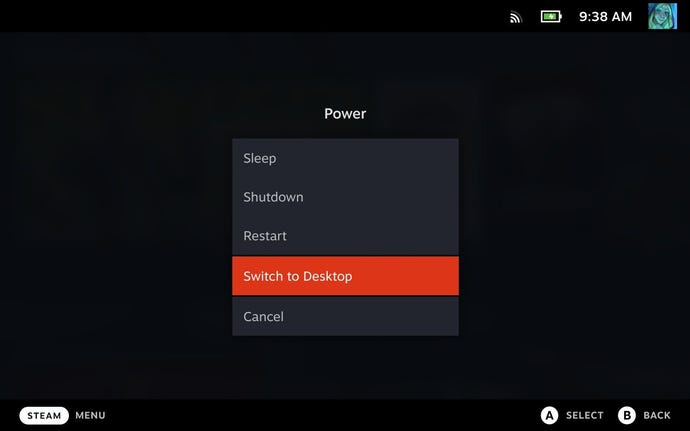
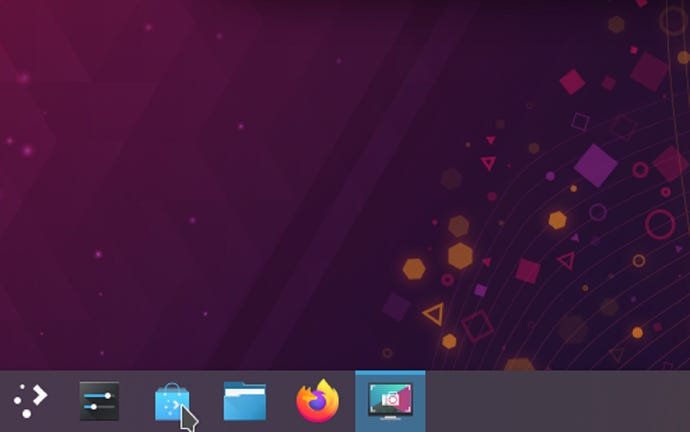
Step 2:Click the Discover Software Center icon – it’s the one in the bottom-left corner that resembles a blue shopping bag.
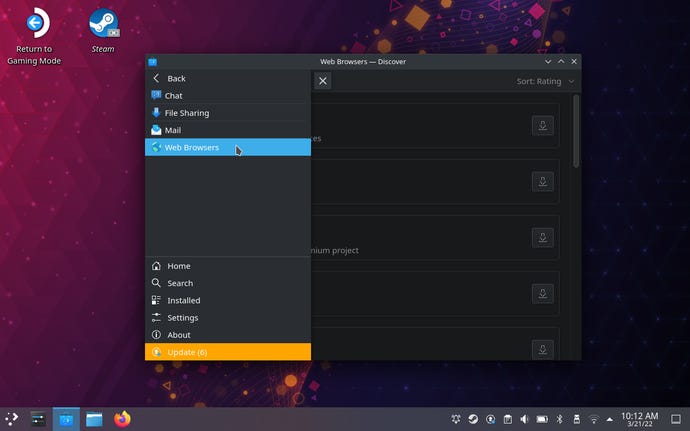
Step 3:Click the three-line icon in the top left of the window, then navigate to Applications > Internet > Web Browsers.
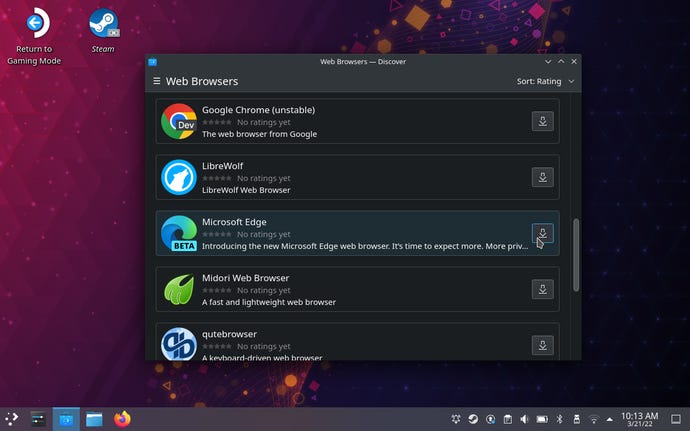
Step 4:Scroll down until you find the Microsoft Edge Beta option. Click its download icon and wait a few moments for it to install.
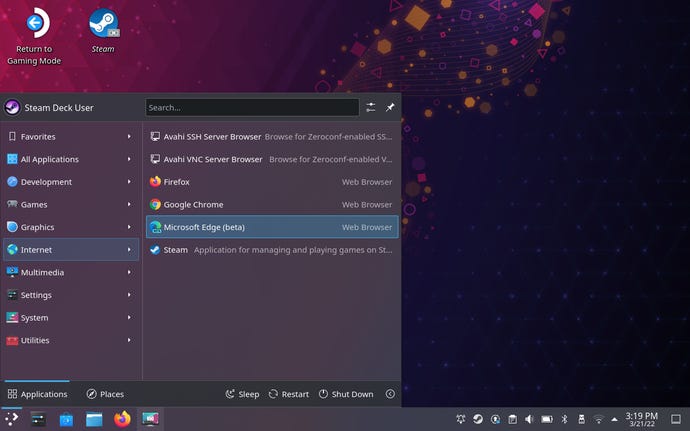
Step 5:Once installed, click the Applications Launcher icon in the very bottom-left corner of the screen. Open the Internet menu.
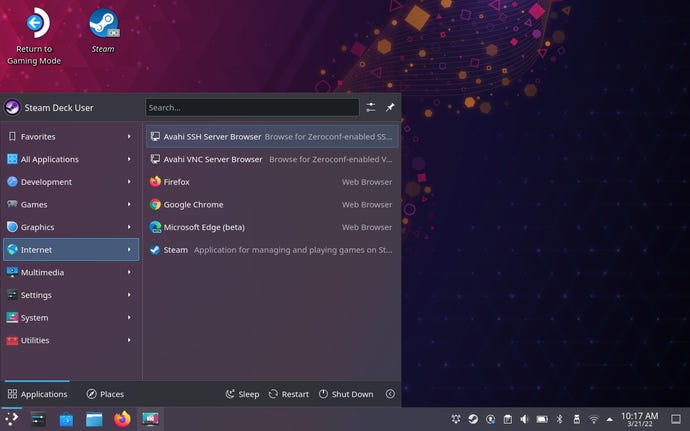
Step 6: Right-click on Microsoft Edge (beta) and select “Add to Steam”.
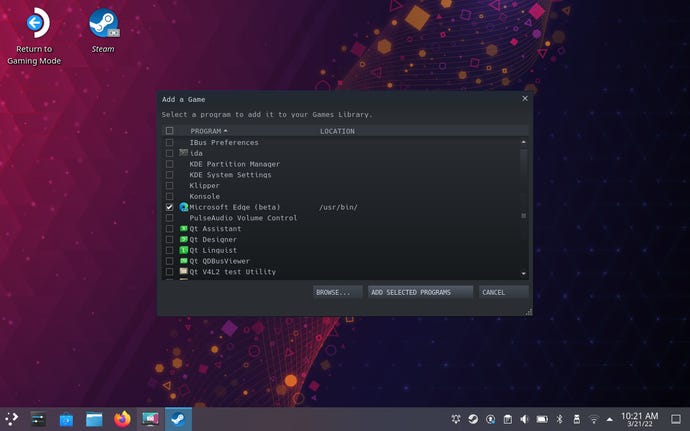
Step 7:Scroll down until you find the Edge beta in the list of apps, then select it and click “Add Selected Programs”.
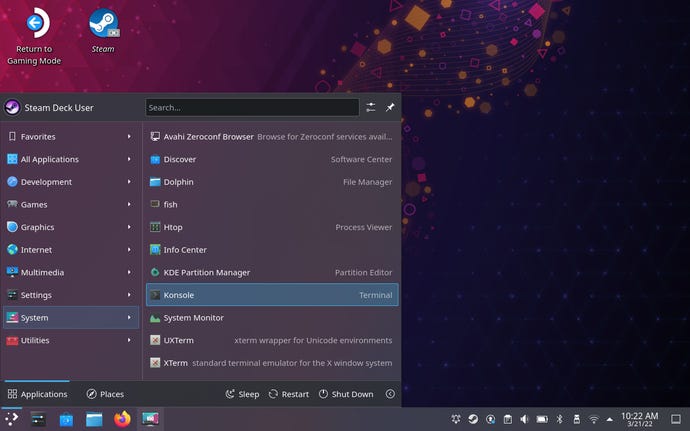
Step 8:Open the Applications Launcher again and head to System > Konsole.
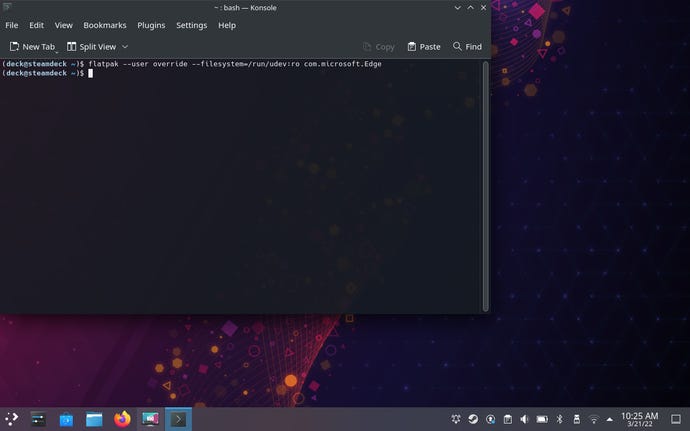
Step 9:Typing time! Punch in“flatpak –user override –filesystem=/run/udev:ro com.microsoft.Edge”(including spaces, but excluding the quote marks) then press Enter. You can close Konsole afterwards.
Step 10:Staying in Desktop Mode, launch Steam and look for Microsoft Edge in your library. Right-click on it and select Properties.
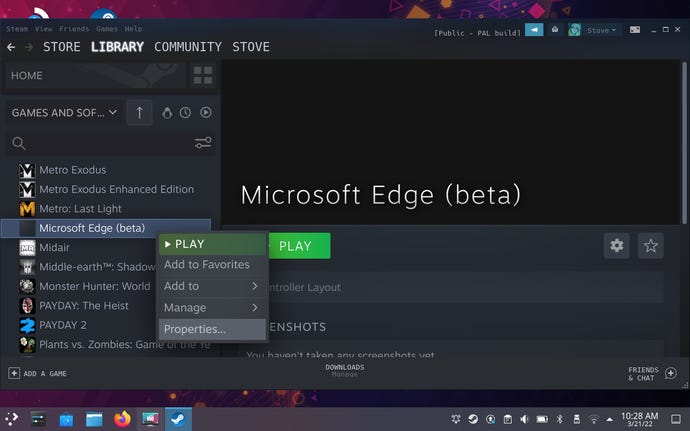
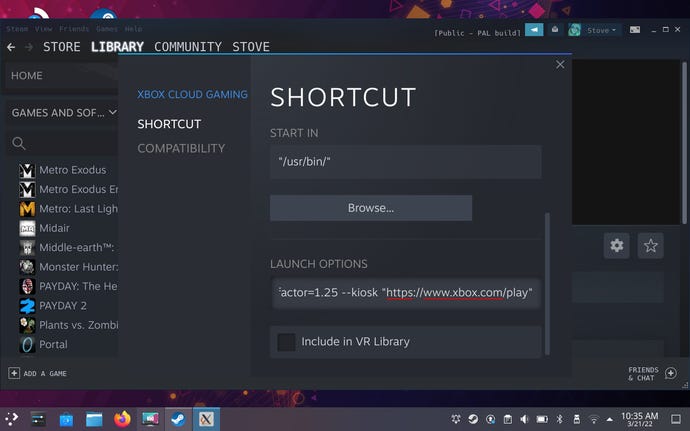
Step 11:Optionally, you can change the name here from “Microsoft Edge (beta)” to something more fitting, like “Xbox Cloud Gaming”. Either way, scroll down to the Launch Options field and add the following text. Just add a space after what’s already there, then enter it – don’t delete any of the existing text.
–window-size=1024,640 –force-device-scale-factor=1.25 –device-scale-factor=1.25 –kiosk “https://www.xbox.com/play"
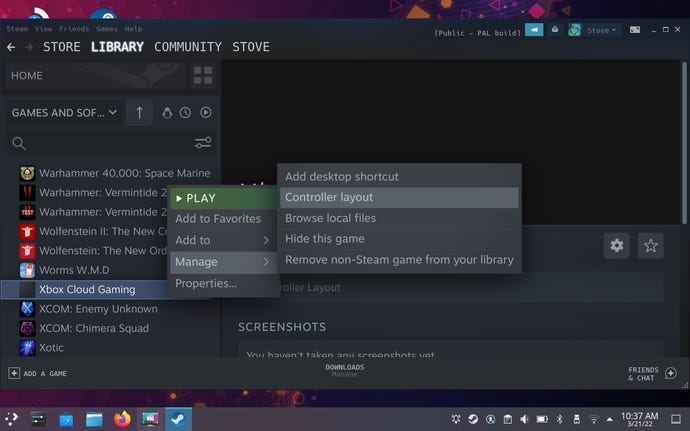
From here you should be able to launch the Edge beta, both in Desktop Mode and the default Gaming Mode. Thanks to that Launch Options tweak, it will take you straight to theXbox Cloud Gaming page, where you can sign into your Game Pass Ultimate account and start streaming games with the aid of proper controller support.
