HomeHardwareFeaturesMount & Blade II: Bannerlord
Mount & Blade 2: Bannerlord performance - how to get the best settingsBanner performance
Banner performance
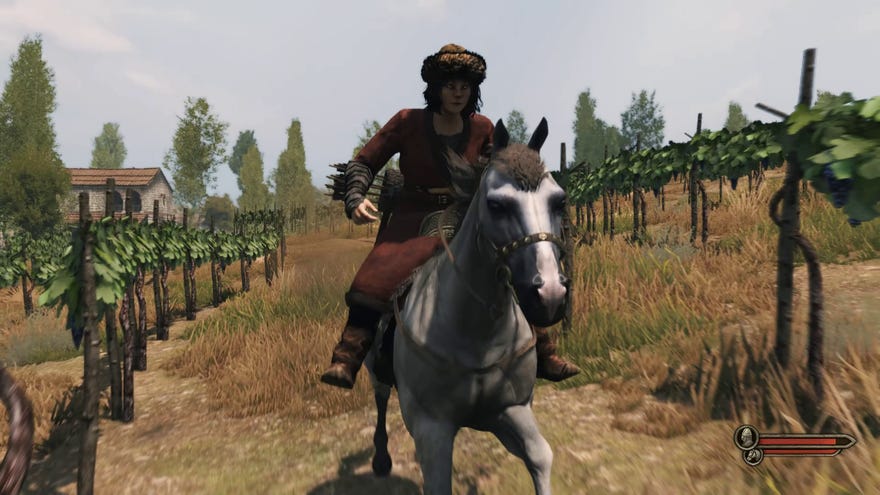
We’ll likely have to wait until TaleWorlds Entertainment issue a patch before Mount and Blade 2: Bannerlord’s loading and crashing issues get fixed, but in the mean time, here’s how to get the game as smoothly as possible using its Performance menu. Below, you’ll see exactly what the game looks like on its five graphics quality settings, as well where you can cut corners to try and improve your frame rate.
Watch on YouTube
Watch on YouTube

Mount and Blade 2: Bannerlord PC requirements
Before we get started, let’s take a quick look at Mount and Blade 2: Bannerlord’s PC requirements. As you can see below, both the minimum and recommended specifications are pretty reasonable for the most part, as you don’t need an expensive graphics card to get the best from it, nor do you need loads of RAM.
Mount & Blade 2: Bannerlord minimum PC requirements:
CPU:Intel Core i3-8100 / AMD Ryzen 3 1200RAM:6GBGPU:Nvidia GeForce GTX 660 (2GB) / AMD Radeon HD 7850OS:Windows 7 (64-bit)
Mount & Blade 2: Bannerlord recommended PC requirements:
CPU:Intel Core i5-9600K / AMD Ryzen 5 3600XRAM:8GBGPU:Nvidia GeForce GTX 1060 (3GB) / AMD Radeon RX 580OS:Windows 10 (64-bit)
Indeed, you only need the 3GB version of the popular Nvidia GeForce GTX 1060 to run Mount and Blade 2: Bannerlord smoothly, as even the highest quality setting in the game only needs around 3GB of memory. As a result, you should be fine with the 4GB version of the AMD Radeon RX 580 as well rather than the 8GB version.
Instead, the real killer is likely going to be that CPU requirement. Indeed, even Mount and Blade 2: Bannerlord’s minimum PC requirement specifies at least anIntel Core i3-8100or AMD Ryzen 3 1200. These quad-core CPUs both came out in 2017, which is . Contrast that with the age of their minimum graphics cards, which came out in 2012, and that could be quite the sticking point for anyone who hasn’tupgraded their PCrecently.
Mount and Blade 2: Bannerlord’s recommended CPU requirements are pretty much bang up to date, too, specifying anIntel Core i5-9600Kor anAMD Ryzen 5 3600X. Indeed, these CPUs only came out last year and are so new, in fact, that they’re currently sitting in mybest gaming CPUlist. Why are Mount and Blade 2: Bannerlord’s CPU requirements so high? Well, it’s all to do with the size of the game’s armies, as you need a lot of computational power to get those hundreds of character models moving onscreen - a bit like Creative Assembly’sTotal War games. As I mentioned above, I need to play a bit more of the game before I can really test how much of a difference your CPU makes to these giant battles, but watch this space.
Mount and Blade 2: Bannerlord - how to get the best settings
For now, let’s focus on Mount and Blade 2: Bannerlord’s graphics performance and how to get the game running as smoothly as possible. I’ve been running the game on or slightly below its recommended PC spec, using an Intel Core i5-8600K running at stock speeds, 16GB of RAM and my 6GB Asus GeForce GTX 1060 OC 9Gbps edition graphics card (which is the same GTX 1060 I use for all my performance tests), along with all the latest Windows 10 and graphics drivers installed.
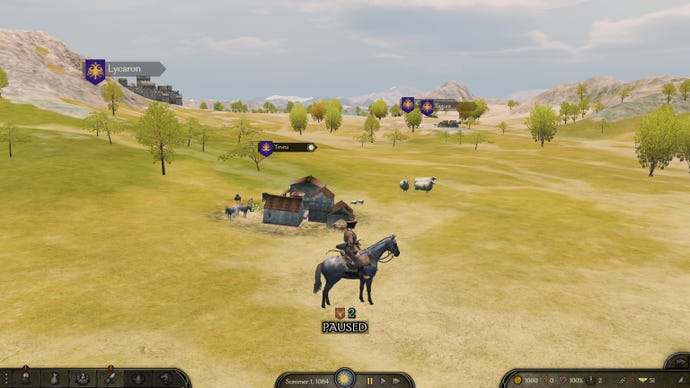
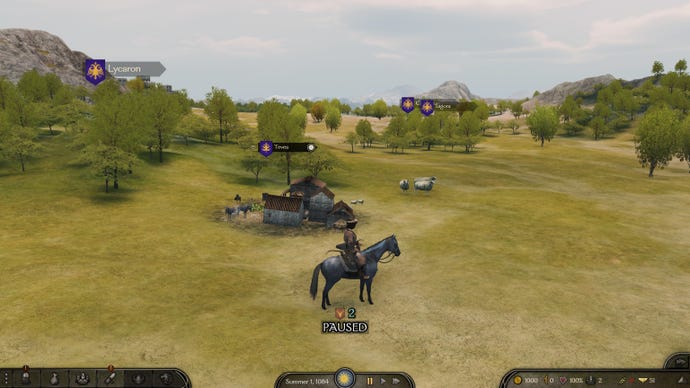
There are five quality settings in Mount and Blade 2: Bannerlord, ranging fromVery Low, Low, Medium, High and Very High. You can find them in the Performance tab of the Options menu, and you can switch between them on the fly without having to reload the game. Here’s what they all look like.
Very LowLowMediumHighVery High
Very Low
Low

Medium
High

Very High
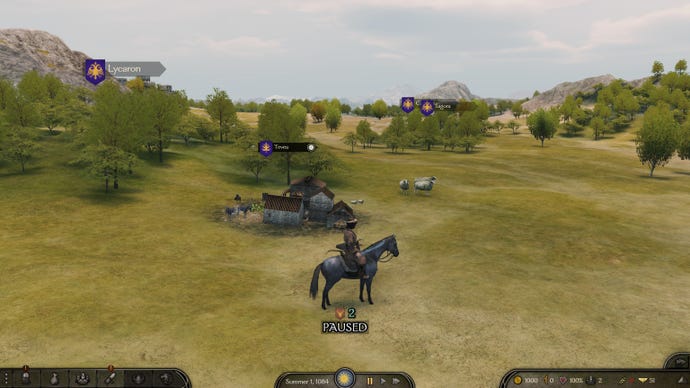
As you can see, they’re all quite different. Very Low effectively strips the game of all its vegetation, textures and fancy lighting effects, giving you the bare minimum in order to get it running. Low, meanwhile, adds quite a lot of trees back into the picture as well as more detailed terrain, but is quite low on shadows.
Moving up to Medium, on the other hand, does give you those aforementioned shadows to help give the world a bit more depth, and smartens up the amount of detail on show as well. High polishes all that up a bit further, while Very High has even more accurate lighting and shadow effects, and adds prettier-looking character, foliage and environmental details.
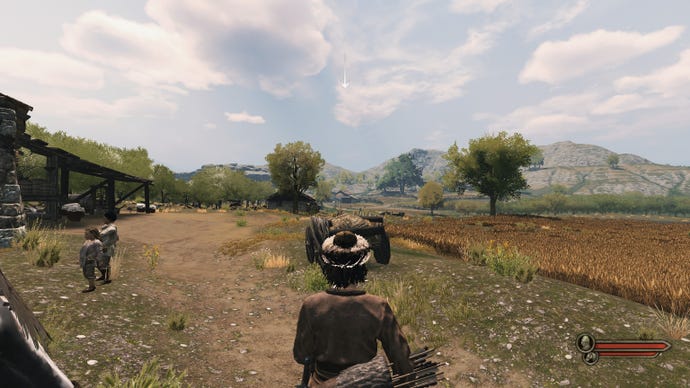
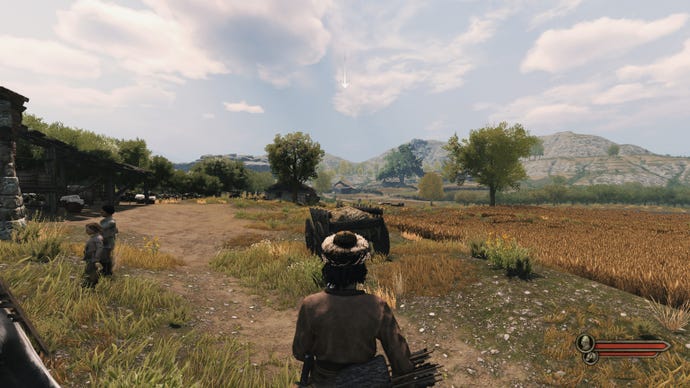
The look of the game changes quite drastically when you’re walking through its towns and having face to face conversations with other characters as well. Here’s what the town scenes look like:
Very LowLowMediumHighVery High
Very Low

Low
Medium
High

Very High

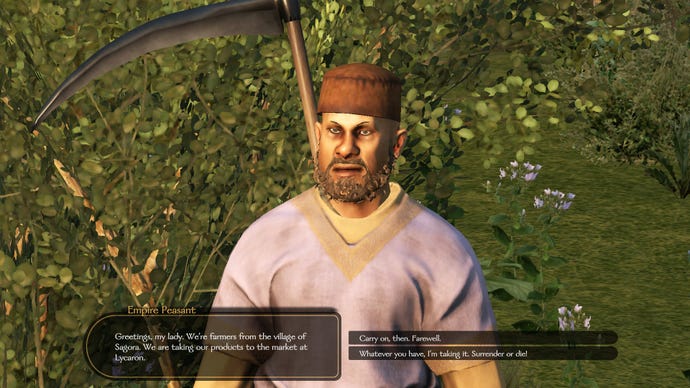
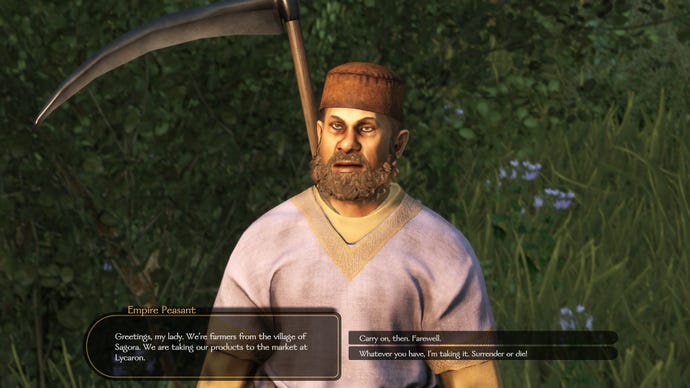
And here’s what characters look like up close, too:
Very LowLowMediumHighVery High
Very Low
Low

Medium
High

Very High

In towns and villages, I wouldn’t say there’s a particularly huge difference between Medium and Very High, and the same goes for character conversations as well. Yes, Medium doesn’t have quite as much wafting grass as High or Very High, but trees and mountains in the distance are relatively similar, as are individual character details such as clothing textures and facial hair.
Instead, it’s really only when you start playing on Low that the game begins to look decidedly worse. In towns, the foliage gets stripped right back to little more than big patches of dirt, and the lighting starts to look a bit wonky as well. As for character conversations, you can also see old merchant man’s beard transform from a reasonably full chin of curls to a straggly, rather sorry-looking patchwork. Even the poor man’s eyebrows shrink in size. And Very Low… well, that’s more a horror show than anything else.
The good news, though, is that even myGTX 1060was able to produce a steady60fpsout on the world map when I was playing onVery High at 1920x1080, and often rose to highs of around 75fps. Riding on horseback through towns occasionally saw that figure fall closer to 50fps (dismounting and walking around on foot pushed it back closer to 55-60fps), but overall the game still felt very smooth and playable.
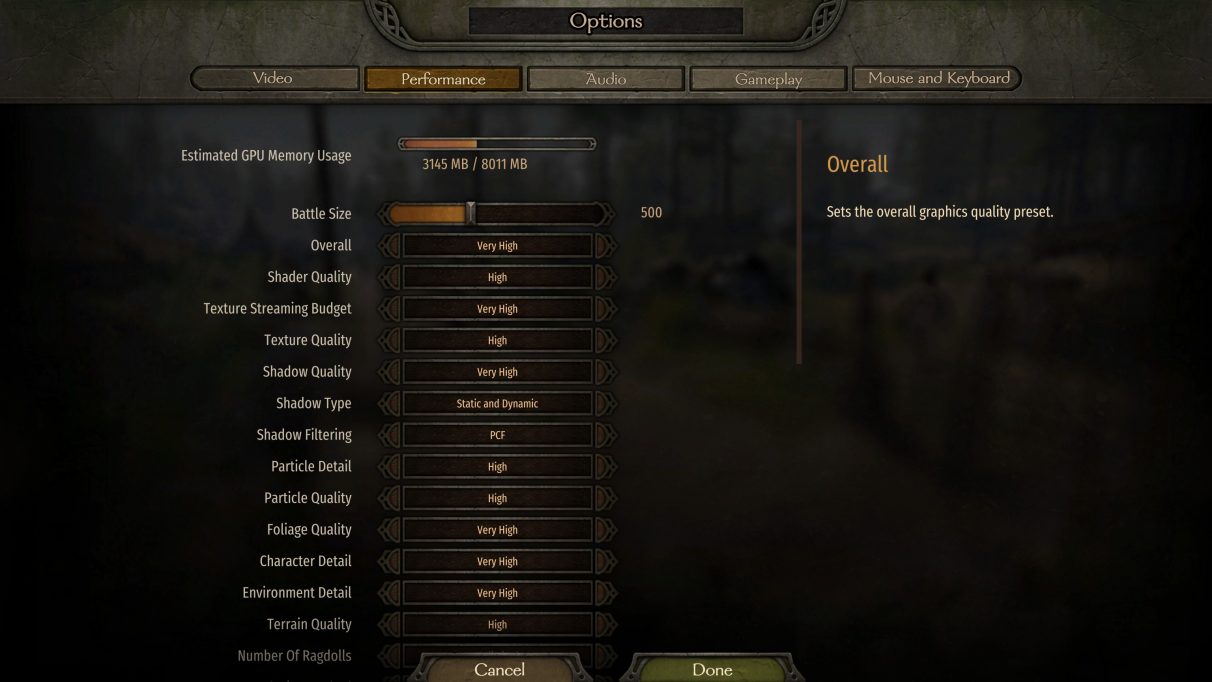
Naturally, dropping the quality down toHighpushed those frame rates well over the 60fps mark, averaging around75fpsout in the world with highs of 80fps. Towns and villages were much the same, too, flitting between 70-80fps depending on the complexity of the scene.
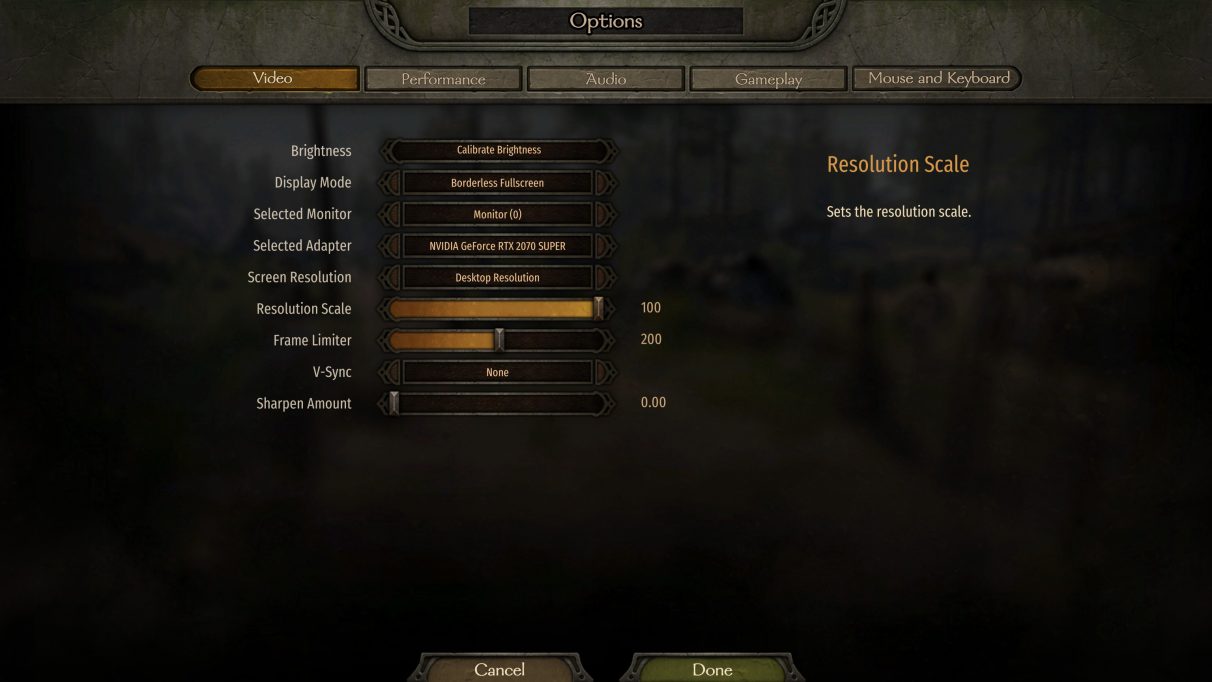
Those were the settings I found had the biggest impact during my testing, but another quick and easy way to improve your frame rate is to take advantage of Mount and Blade 2: Bannerlord’sResolution Scalefeature. You’ll find this in the Video tab rather than the Performance menu in Settings (as shown above), and it lets you run the game at a percentage of your desktop resolution, such as 90% or 83% of 1920x1080, for example. The game is then upscaled to your chosen desktop resolution, and can help take a bit of the load off your GPU without dropping down a full resolution setting.
You can adjust it in increments of one right down to 20%, too, which gives you loads of flexibility - although I’d recommend keeping it as high as possible where you can, as 20% of 1920x1080 means you’re technically only running the game at a measly 384x216! 90%, on the other hand, will upscale from a resolution of 1728x972.
In fact, you probably don’t even need to go down as far as 90%, as I found that even sticking to 95% did wonders for my frame rate. When I was riding around in towns and villages, for example, I saw a steady frame rate of around 80fps on the default Very High quality mode, which is pretty much the same kind of boost I got from dropping down the anti-aliasing one notch. As a result, if you’re adamant about playing with the highest possible graphics settings but don’t quite have the GPU power to do it, then making use of the Resolution Scale in this way could be just the ticket.
As I mentioned above, I’ll be doing more Mount and Blade 2: Bannerlord testing over the coming weeks to see how you can improve the game’s siege battle performance, and how different CPUs can affect the speed of the game, but in the mean time the tips and tricks I’ve outlined above should hopefully be enough to help you get going with the early hours of the game and help you keep a steady frame rate if your PC is getting on a bit.
And while you’re here, be sure to check out our guides team’s top 25 tips for Bannerlord beginners in theirMount And Blade 2 Bannerlord guideas well.
