HomeGuidesMinecraft: Dungeons
Minecraft Dungeons multiplayer: coop modes explainedHow to set up local and online multiplayer
How to set up local and online multiplayer
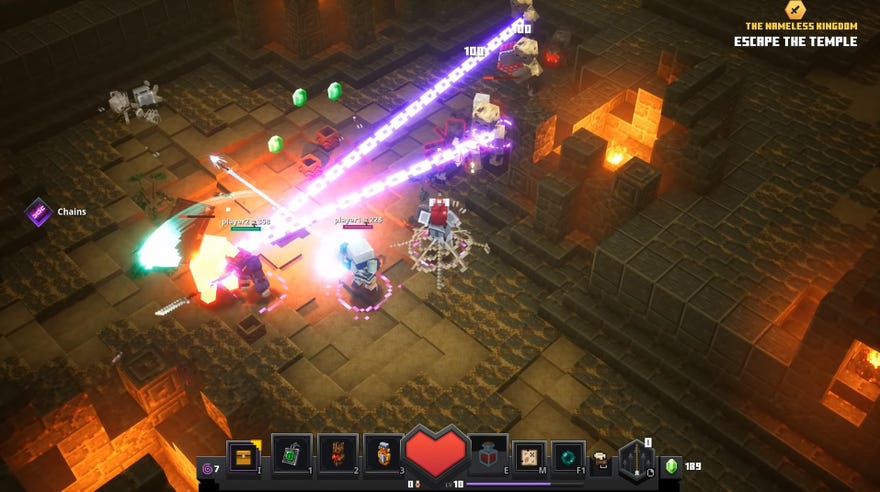
Minecraft Dungeons is a lot more fun, albeit a lot more challenging, when you’re playing with friends. Teaming up with another player is rather simple to set up, whether you’re playing with friends online or family members in the same household.
In thisMinecraft Dungeons multiplayerguide, we will be teaching you how to set uplocal multiplayerand how to set uponline multiplayer, as well as explaininghow the multiplayer mode works.
Minecraft Dungeons Is A Missed Opportunity | Minecraft Dungeons Review (PC)Watch on YouTube
Minecraft Dungeons Is A Missed Opportunity | Minecraft Dungeons Review (PC)

Minecraft Dungeons multiplayer explained
Minecraft Dungeons can be played solo, but it’s a lot more fun when you and your friends are battering your way through hordes of Creepers and corrupted Illagers. You and up to three other heroes can venture into both story missions and secret missions in a quest to find better loot.
There are some key things to keep in mind whenever you’re playing multiplayer:
How to set up Minecraft Dungeons local multiplayer
For those who are able to play Minecraft Dungeons with friends in the same space, you will need multiple controllers. This is because the PC version can’t support multiple keyboard and mouse setups on the same PC. You can have one person using keyboard and mouse, while other players use controllers.
To set up a local multiplayer game, select “offline game” from the main menu. Here you can have up to three other players to join your game. Each will be able to select their own skins from a limited selection, before appearing in the camp.
How to join friends in Minecraft Dungeons online multiplayer
The majority of people will likely be connecting with friends for online multiplayer. This has two advantages compared to local multiplayer: you’ll be following your own hero around each level since you are not confined to(splitscreen/a limited space), and you’ll be able to use whatever control setup you want.
You will need to be friends with the other players, so make sure that you have added your friend’s Xbox gamer tag before running the game. Once this is done, head into Minecraft Dungeons.
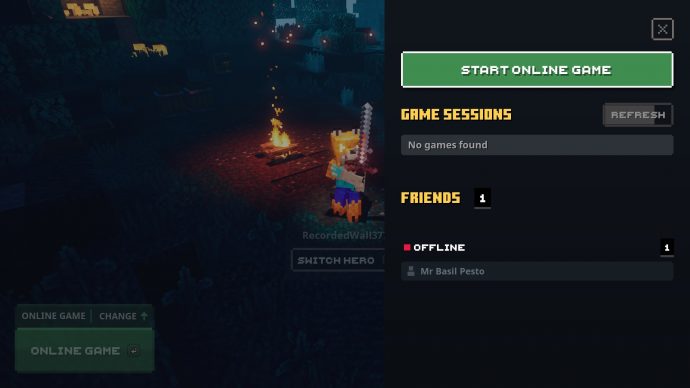
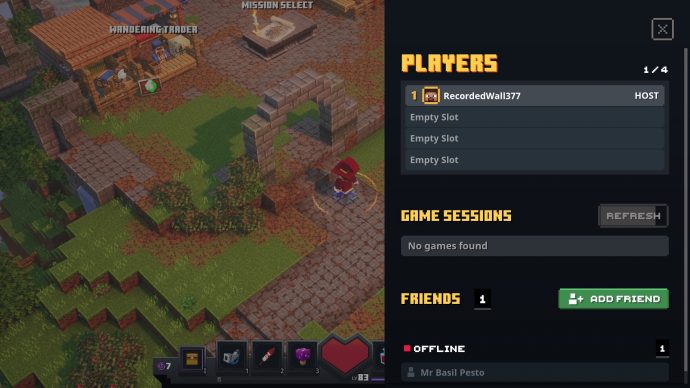
To set up an online multiplayer game, select “online game” from the main menu. Here you can see who’s online and who’s offline. Select “Start Online Game” to head to the camp. From here, open up the Friend tab (Default on keyboard is F). Here you can invite up to three other players to join your game.
If you have a family sharing account with some friend’s Xbox accounts linked to it, it is possible to play Minecraft Dungeons on separate devices online. It’s not perfect as we did struggle to get it working with one of our shared accounts, but a second account was able to play with no issues. Microsoft have a guide on how to do thishere.
If you are looking to join friends on other devices where Minecraft Dungeons is available (Xbox One, PlayStaiton 4, and Nintendo Switch), sadly it’s not available yet. However there’s some stuff you can do ahead of time. Go to ourMinecraft Dungeons crossplayguide for everything you need to have set up before crossplay comes to Minecraft Dungeons.
Minecraft Dungeons guide series
Thanks for reading our Minecraft Dungeons multiplayer guide. You’ll find plenty more guides for the game in the section below, so do check them out.
