HomeHardwareGuides
How to use Steam Remote Play on the Steam DeckStream games from your PC, or use the Steam Deck as a controller
Stream games from your PC, or use the Steam Deck as a controller
Image credit:Rock Paper Shotgun
Image credit:Rock Paper Shotgun
Image credit:Rock Paper ShotgunSteam Deck Academybrings together all our guides and explainers on getting the most out of your Steam Deck, no student loans or sweaty dormitories required.
Image credit:Rock Paper Shotgun
Steam Deck Academybrings together all our guides and explainers on getting the most out of your Steam Deck, no student loans or sweaty dormitories required.
On top of that, streaming from a PC will help you save on the Deck’s storage space – useful if you’ve yet to pick up one of thebest microSD cards for the Steam Deck– and you can even use Remote Play to wrangle the Steam Deck into acting as a controller for your desktop. It’s all worth learning, just as it’s worth knowinghow to stream your PC Game Pass games to the Steam Deck.
How to use Steam Remote Play on the Steam Deck
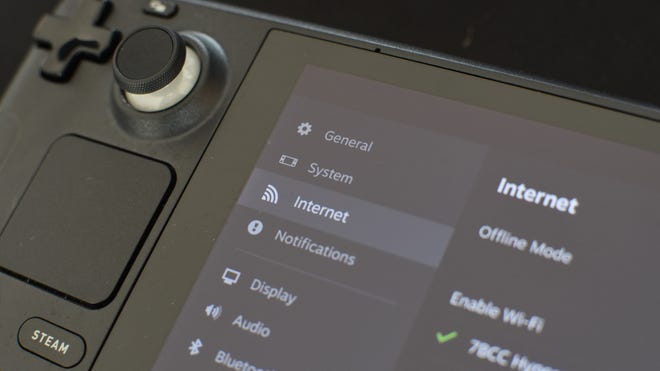
Step 1:Make sure your PC and your Steam Deck are both connected to the internet and logged into the same Steam account, with the games you want to play remotely already installed on the main PC.
Assuming your Steam Deck will use Wi-Fi, for best results connect your PC via Ethernet.
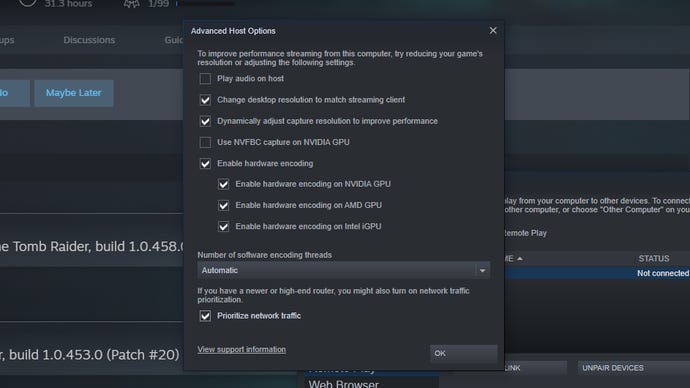
For streaming, there’s no point having your PC rendering at your monitor’s 1080p/1440p/4K resolution when you’re going to be viewing everything on an 800p Steam Deck - so check the second box.
Step 3:With the housekeeping done, it’s time to play. On your Steam Deck, navigate to the game that you want to play in your library. See the little downwards-pointing arrow next to the Install button? Select it to bring up a list of available devices, which should include both the Deck and your PC.
The very first time you try this, SteamOS will highlight this button for you. Jolly nice of it.
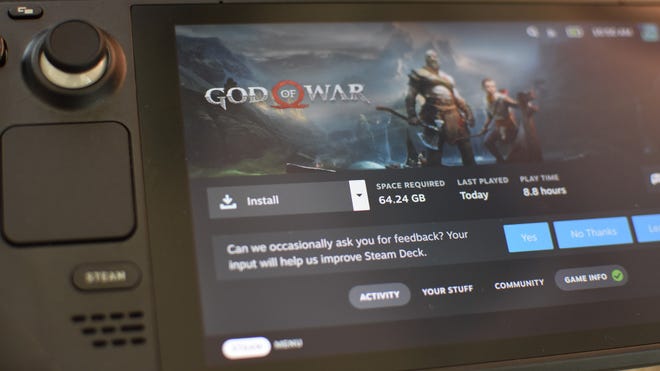
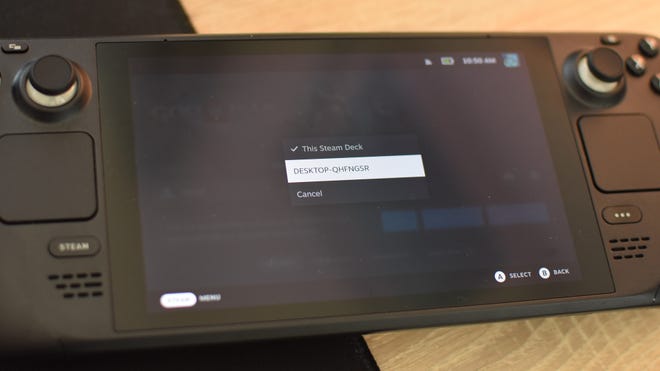
Step 4:Select your PC from the list and you’ll instantly return to the game’s library page. The Install button will now say “Stream” instead, so select it, the select “OK” on the following screen.
You can check your PC’s name in the “About” section of its Windows settings.
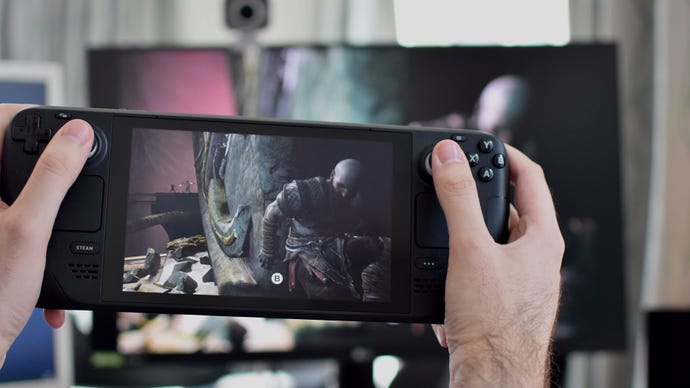
Step 5:Your PC will enter Steam’s Big Picture Mode and launch the game, which will simultaneously stream to your Steam Deck. Congrats – you are now using Remote Play, so sit back and play. Remotely.
Job done. To exit Remote Play or customise controls, press the Steam button on the Deck.
How to use the Steam Deck as a PC controller using Remote Play
Another neat thing about Remote Play is that it can turn the Steam Deck intro a controller for your main PC; handy for games that don’t sit so well with a mouse and keyboard. Yes, it’s bigger and heavier than the usual Xbox and PlayStation controllers, and thebattery lifewon’t be as good, but they don’t have the Steam Deck’s haptic trackpads. Also, who knows, some folk may have spent their entire peripherals budget on… well, a Steam Deck, quite possibly.
In any case, setting up the Steam Deck as a controller only takes a few settings tweaks, focused around getting your games to use your desktop audio and monitor again.
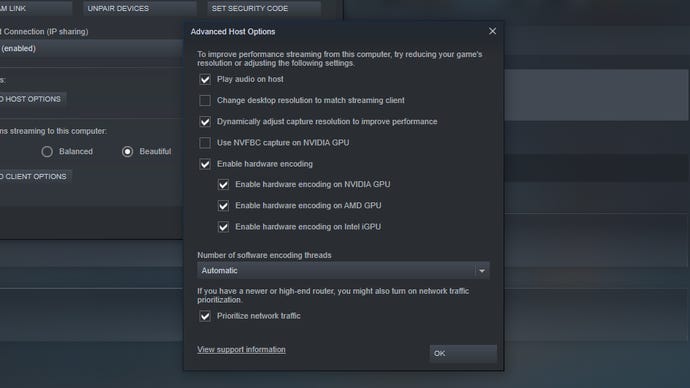
Step 1:On your PC, go back into the Remote Play settings’ Advanced Host Options on your PC. Check “Play audio on host” and uncheck “Change desktop resolution to match streaming client”, then click “OK”.
Here’s how the host settings should appear if you want to use the Steam Deck as a controller.
Step 2:Back on the Steam Deck, mute the speaker volume and start streaming a game as if you were going to play it remotely. You can then ignore the Deck’s screen while using its controls to play on your main monitor, with your PC’s own speakers or headset. It’s something of a bodge compared to, say,connecting a PS5 DualSense controller, but it works.
