HomeHardwareGuides
How to uninstall Windows 11 and go back to Windows 10Upgrader’s remorse? Read this guide
Upgrader’s remorse? Read this guide
Change isn’t for everyone: just ask the 5% ofSteam Hardware Surveyrespondents still using Windows 7. Sadly, even the most eager of early adopters might be looking to find out how to uninstallWindows 11, the very latest of Microsoft’s operating systems. It could be the newly centralised Start menu; it could be the lack ofDirectStoragesupport among games making thebest SSDsperform below their full capability; it could just be a single unsquished bug, which remains a risk with the infant OS. Fortunately, if you decide to want to switch back to Windows 10 within 10 days of installing its successor, it’s possible to roll back in just a few, mildly regretful clicks.
The PC Gaming Weekspot: Game Of The Year 2021 (So Far)! Final MSR! Bumper Burning Questions!Watch on YouTube
The PC Gaming Weekspot: Game Of The Year 2021 (So Far)! Final MSR! Bumper Burning Questions!

I should stress that this method only works within that 10-day time limit; a kind of trial period, if you will. Beyond that, your best hope is a completely clean Windows 10 install, which would cost any files, games and apps you hadn’t previously backed up. If you do decide to switch back in time, you can might lose some apps and settings changed made after you firstinstalled Windows 11, but anything you brought over from Windows 10 should return intact.
How to uninstall Windows 11 and go back to Windows 10
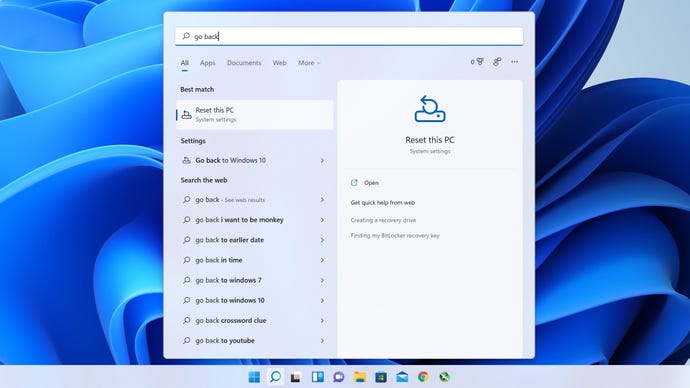
Step 1:Type “go back” in the Windows 11 Start menu’s search bar. This should bring up the Reset this PC shortcut, so open it up. You can alternatively navigate to System > Recovery in the main Windows settings, but this search method is faster.
Hit Enter once “Reset this PC” is highlighted. Or click “go back I want to be monkey” if you want to find out what that’s even about.
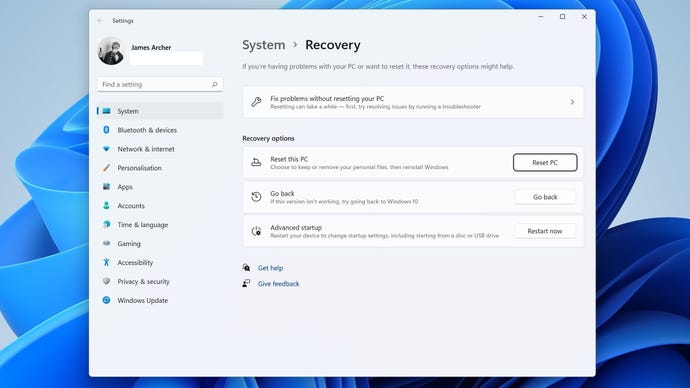
Step 2:Assuming you’re within the time limit, a “Go back” option should be listed within the Recovery options section. Click the Go Back button.
Be sure to do this within the 10 days, or the option to go back will grey out or disappear.
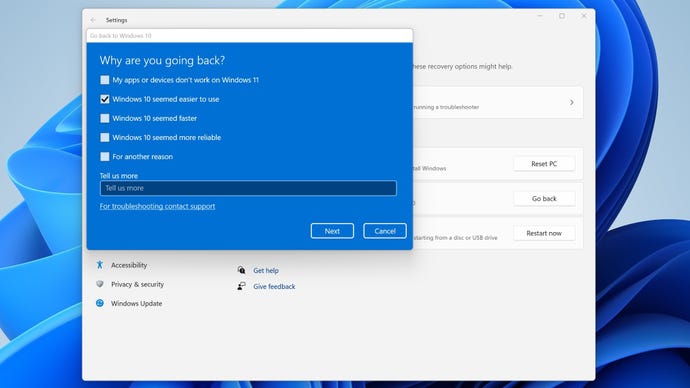
Step 3:Select a reason for going back (or just check ‘For another reason’ and leave the field blank), then click Next. Windows will try to sweet-talk you into checking for updates to fix potential problems instead, but you can just click No Thanks to proceed with the rollback.
Expaining yourself at length is, thankfully, optional.
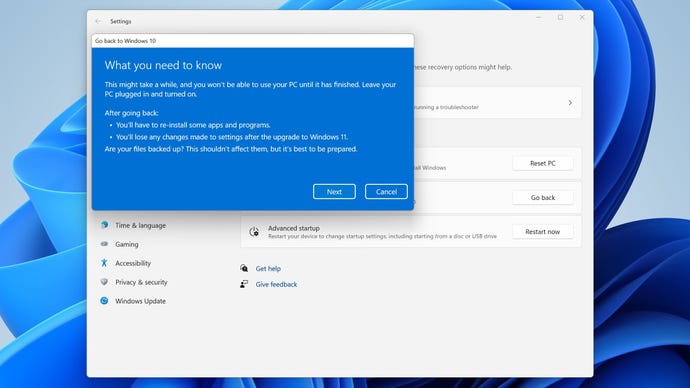
Step 4:On the “What you need to know” screen, note the warnings about potentially losing apps and settings, then hit Next. On the following screen you’ll get a reminder that you might need your Windows 10 password – a somewhat odd reminder, given Windows 11 uses the same login credentials as your Windows 10 account when upgrading – so hit Next here as well.
You obviously won’t get to take Windows 11-exclusive apps and settings back to Windows 10 with you.
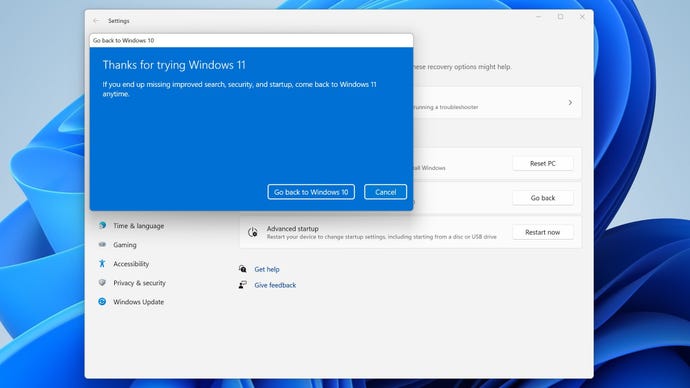
Step 5: At last, click Go back to confirm you want to switch. After a short wait, including a reset, you’ll be back on Windows 10.
The final click. The actual reversion to Windows 10 takes but a few minutes.