HomeHardwareGuides
How to take screenshots on the Steam DeckHow to take, find, and manage your screenshots on the go
How to take, find, and manage your screenshots on the go
Image credit:Rock Paper Shotgun
Image credit:Rock Paper Shotgun
Image credit:Rock Paper ShotgunSteam Deck Academybrings together all our guides and explainers on getting the most out of your Steam Deck, no student loans or sweaty dormitories required.
Image credit:Rock Paper Shotgun
Steam Deck Academybrings together all our guides and explainers on getting the most out of your Steam Deck, no student loans or sweaty dormitories required.
TheSteam Deckis all about transplanting the pleasures of PC gaming to a handheld. But, if you’re exclusively accustomed to mouse and keyboard controls, even simple actions like taking a screenshot can require learning a new language of button combinations. Luckily, in this specific case, snapping a screenshot on the Steam Deck is as easy as a couple of presses – or to be more specific, a hold and a press.
This guide will also show you where to find your screenshots once you’ve taken them, and how to upload them so that your friends and other Steam users can admire your Deck photography. Only if you’re in a sharing mood, obviously; there’s nothing stopping you from snapping yourSteam Deck gamesand uploading them privately.
How to take screenshots on the Steam Deck
Hold down the Steam button, then tap R1. That’s all it takes, and a notification will appear in the bottom-right corner of the screen to confirm a successful screengrab.
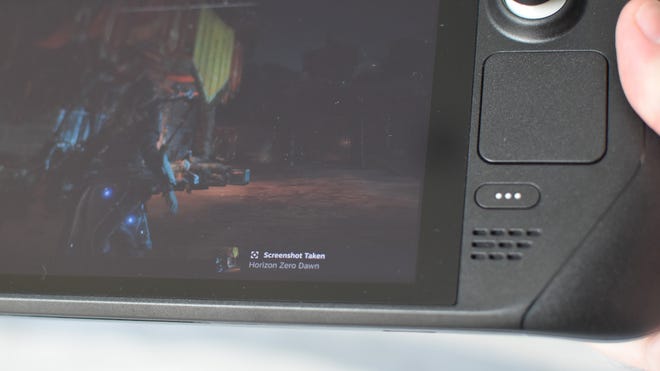
This is one of many Steam Deck shortcuts that aren’t made explicit unless you’re already holding down the Steam button, which will present the full list. For instance, hold down Steam + L1 and you’ll toggle the magnifying tool, which is perfect for zooming in on hard-to-read text in strategy and management games. Holding down the Steam button and tapping X will also bring up the onscreen keyboard at any time, while flicking the left thumbstick up or down while holding the Steam button will raise or lower the display brightness.
These are useful tricks to know, and taking a screenshot with Steam + R1 is among the quickest and easiest of the bunch.
Where are my Steam Deck screenshots saved?
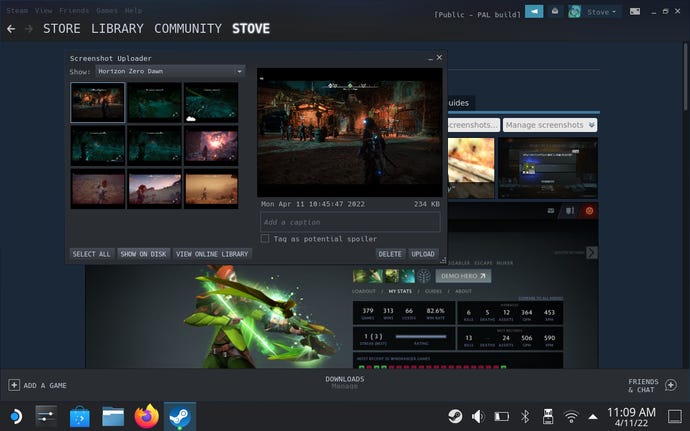
To upload a screenshot, highlight it, then press the Menu button (the little three-lined button above the right thumbstick) and select “Upload”. Confirm the upload, which will add the shot to your private library only. To make it public, viewable to friends only, or unlisted, find the same screenshot under the “Private” tab then highlight it, press the Menu button and select your favoured visibility setting.
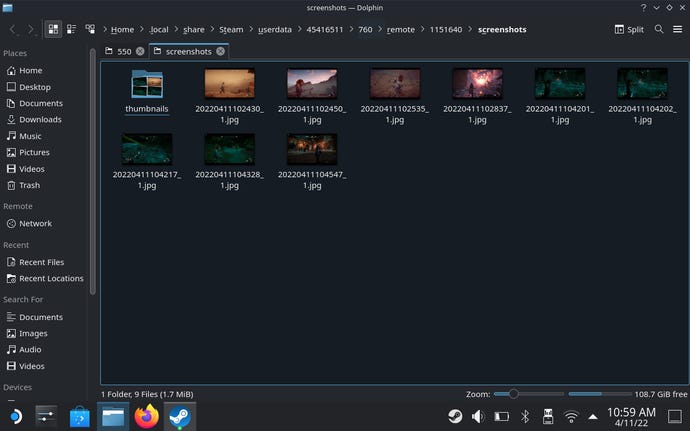
Home > .local > share > Steam > userdata > [Your Steam account ID] >760 > remote
For more on getting the most out of your Steam Deck, have a look at ourbattery life guide: it includes both quick tips to boost your Deck’s endurance, and battery life test results for a whole bunch o' games.
