HomeHardwareGuides
How to set up two monitorsDual wielding
Dual wielding
Image credit:Rock Paper Shotgun
Image credit:Rock Paper Shotgun
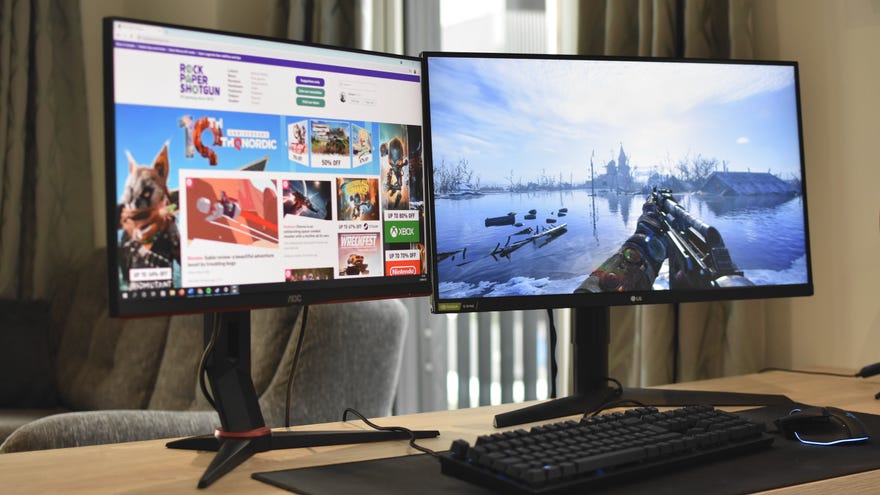
It’s funny to think how different the use cases are for setting up two monitors for your gaming PC, compared tosetting up three. A trio of displays lets you play in ultrawide with a wraparound effect that even most purpose-built ultrawide monitors can’t match, but while you can configure a dual-monitor setup to run games across displays, it doesn’t make nearly as much sense. With the borders of each screen running straight down the middle, most of thebest ultrawide PC gameswould be nigh-unplayable. Still! If you can budget for it, two remains better than one. It’s an expanded but focused setup for when you’re playing a full-screen game but also want a browser tab, video, or streaming controls visible at the same time.
The PC Gaming Weekspot: Deathloop Gameplay! Kena Bridge Of Spirits Gameplay! Nvidia GeForce Now!Watch on YouTube
The PC Gaming Weekspot: Deathloop Gameplay! Kena Bridge Of Spirits Gameplay! Nvidia GeForce Now!

Another benefit of using two monitors, even over three, is that you have much greater flexibility to mix and match thebest gaming monitors. Triple-screen ultrawide play works best when they’re all of the same size, but if you commit to a dual-screen setup where only one screen is for games and the other is for just about anything else, you can pick and choose any sizes, resolutions and even orientations you want. Two identical displays? That works just dandy, but the steps below will apply to any combination, regardless of mismatched proportions and pixel densities, or even if you’ve turned one monitor sideways into portrait mode. You can also follow them to add a second monitor to a gaming laptop, provided yours has a spare display output.
Here’s how to set up two monitors for gaming and multitasking:
Step 1:Get two monitors. Again, these don’t need to be the same make or model, or even have comparable specs. For our recommendations, check out the overall best gaming monitors list linked above, as well as ourbest 4K gaming monitorsandbest budget gaming monitorsguides.
Angle both monitors towards your seating position for MAXIMUM COMFORT.
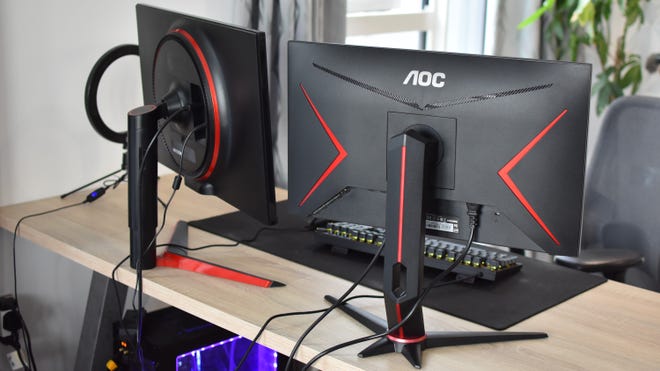
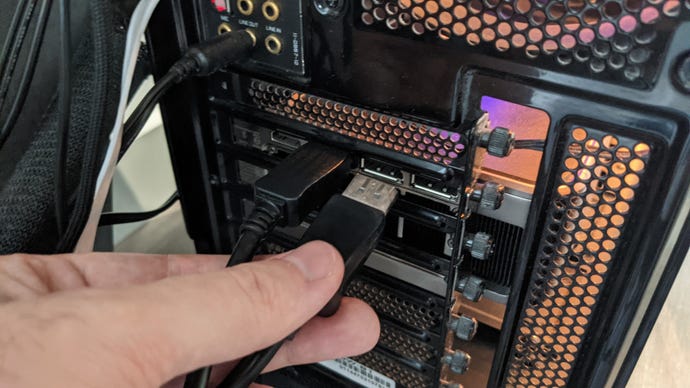
Step 2:Make sure both monitors are powered up and connected to the display outputs on your PC’s graphics card (on a laptop, you just need the one cable/output for the extra monitor). Arrange them on your desk however you like, though naturally you’ll spend less time twisting your neck if they’re close together.
All modern graphics cards have at least two outputs.
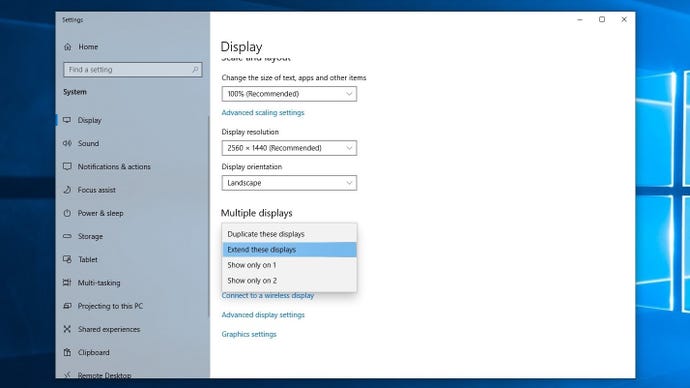
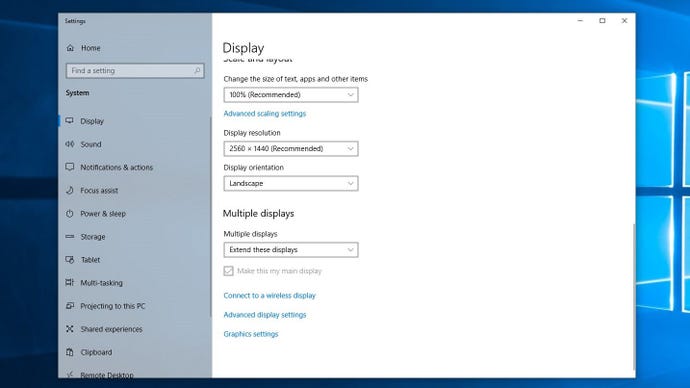
Step 3:Open Windows’ display settings menu: on Windows 7 and 8, just right-click anywhere on the desktop and click “Screen resolution”. On Windows 10, right-click on the desktop and click “Display settings”. Scroll down to the “Multiple displays” section and select “Extend these displays” from the drop-down menu, then confirm the change.
Select “Extend these displays” to spread apps across both screens.
Monitor 1 doesn’t need to be the main monitor; those numbers are just for labelling.
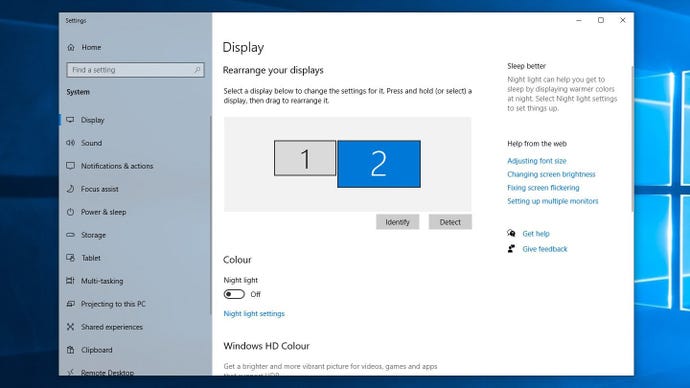
If the monitors are arranged incorrectly in the diagram – for example, if the monitor on your left is on the right in the diagram – then click on the corresponding numbered box and drag it to the correct position. On Windows 7 and 8, click “Apply” after making this or any other changes; Windows 10, on the other hand, will save them automatically.
In the diagram of your two displays, click on the one you want to use as the main monitor to highlight it, then scroll back down to the “Multiple displays” section. Check the “Make this my main display” checkbox to set the selected screen as your main monitor. Unless it’s already checked, in which case congrats! You don’t need to do anything else.
If the main monitor checkbox is greyed out, it’s already checked.
From there, you’re good to go. When you launch a game, it should appear (emphasis on “should” – see below) on the main monitor, leaving the second display free for anything you want. Text chat, browsers, dolphin videos, self-assessment tax spreadsheets, whatever, I don’t judge.
Oh dear, a game is launching on the wrong window!
There can be a few different reasons why games might misbehave and launch on your secondary monitor, ranging from in-game settings to simple bugs. Here are a few potential fixes you can try to get the game back on your main monitor, where it belongs.
