HomeHardwareGuides
How to set the Steam Deck lock screenSecure your Deck with PIN protection
Secure your Deck with PIN protection
Image credit:Rock Paper Shotgun
Image credit:Rock Paper Shotgun
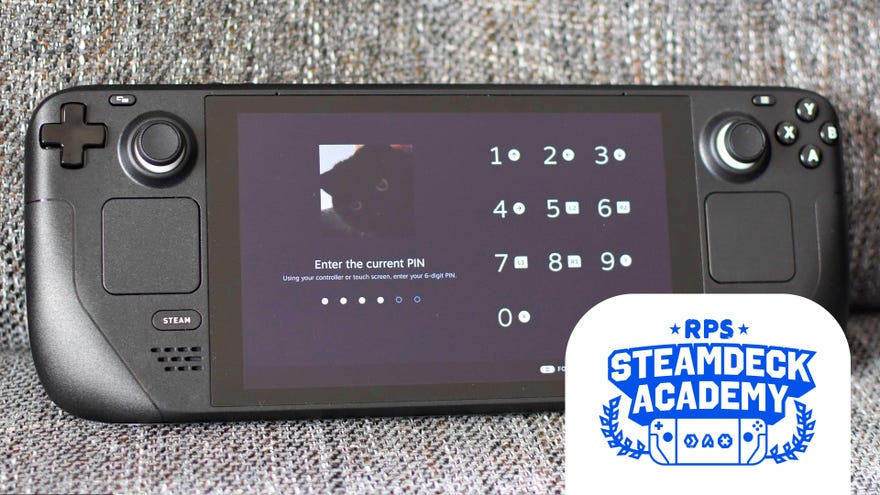
Image credit:Rock Paper ShotgunSteam Deck Academybrings together all our guides and explainers on getting the most out of your Steam Deck, no student loans or sweaty dormitories required.
Image credit:Rock Paper Shotgun

Steam Deck Academybrings together all our guides and explainers on getting the most out of your Steam Deck, no student loans or sweaty dormitories required.
Yes, the Steam Deck now has a lock screen, ready to thwart potential troublemakers who might otherwise take advantage of an unattended Deck to mess with your settings, delete saves or, or just straight-up commit theft. A PIN won’t stop the crim from running off with the whole device, of course, but itwillstop them from accessing your Steam account. Suck it, evildoer – no ill-gottenSteam Deck Verified gamesfor you.
This guide will show you how to enable the Steam Deck’s lock screen, including setting a PIN, through the default Gaming Mode. This is something of a necessity, as Valve have acknowledged aserious technical issuewith trying to apply the requisite software update while in the Deck’s Desktop Mode: it can cause an infinite boot loop, needing a full OS recovery to fix. Nasty stuff, so do stick to Gaming Mode for the following steps.
How to set the Steam Deck lock screen
Step 1:You can probably skip this step if you’re fastidious about keeping up with Steam Deck software updates, but you will need the Lock Screen Update (released on April 26th 2022) to get the lock screen. To install this (and any other subsequent updates) manually, press the Steam button, select Settings, then System, then hit “Apply” in the Software Updates field. If the “Apply” button actually says “Check to Updates”, press that first, then “Apply” after it finds the update.
The cog icon in the system tray is a sign that a juicy update is available.
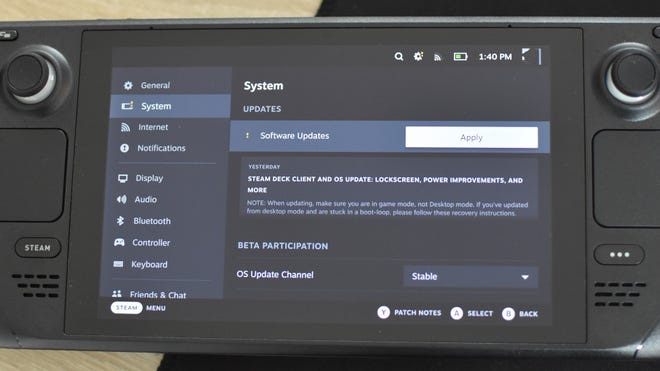
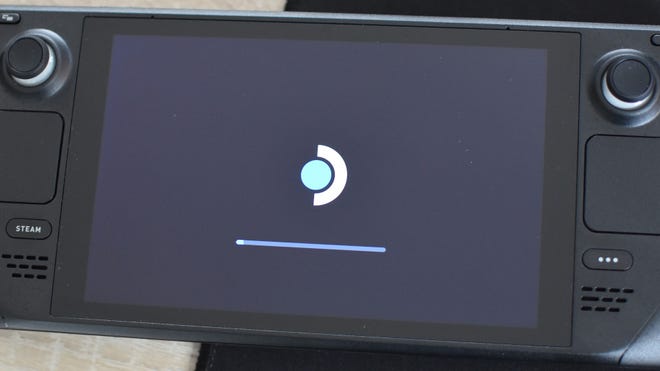
Step 2:Wait a few minutes for the update to apply, and when it’s finished, restart your Steam Deck. This will also take a few minutes, maybe just enough time to read ourbest microSD cards for the Steam Deckguide.
Your Steam Deck might play a chime several times during this process, but leave it alone until the update is fully complete.
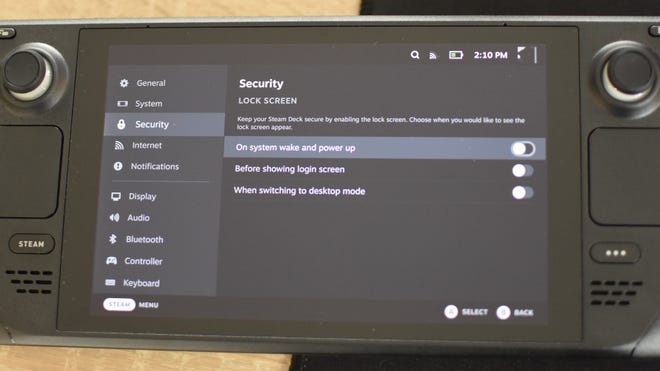
Step 3:Once the update/restart is complete, sign in and hit the Steam button again. Open up Settings and you’ll notice a new Security tab, so select this and toggle one of the three options for when you want the lock screen to appear. Select the first toggle if you want it up every time you boot the Deck, or wake it from sleep mode.
To activate a toggle, highlight it and press the A button.
Step 4:This is where you can choose a six-digit PIN, using either the Deck’s buttons or touchscreen to punch it in. Standard digi-security best practices apply here: nothing easily guessable, or ha-ha ironic like 123456. After entering your shiny new PIN, enter it again to confirm.
It does need to be the full six digits; you can’t set a shorter PIN.
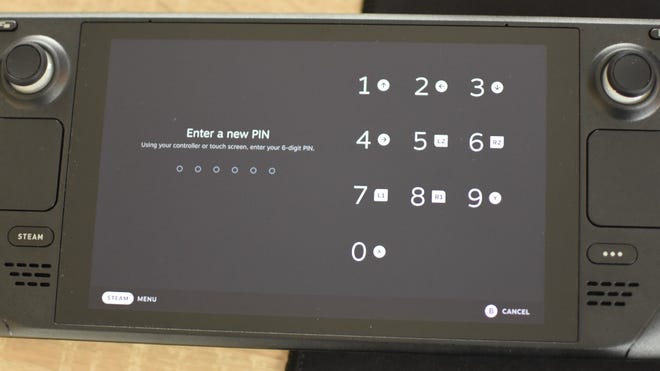
Step 5:You selected toggle will now be blue, showing that PIN protection is in place and that the lock screen will start appearing. At this point you can also set the other two toggles without needing to input the PIN again.
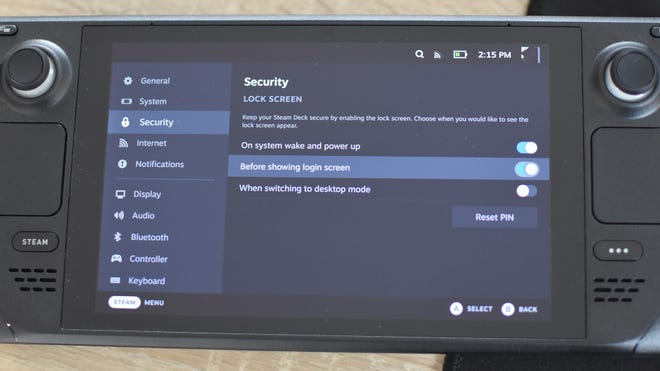
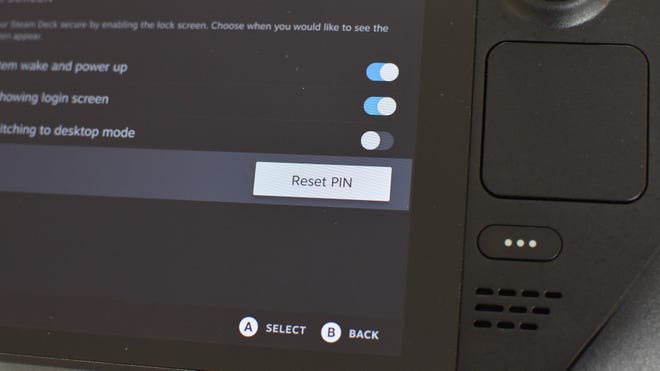
Step 6:To reset your PIN, you can return to this menu any time and select – yes! – “Reset PIN”. You’ll just need to tap in your existing PIN once and enter a new PIN twice.
This button. This button riiiight here.
For more on getting the most from Valve’s go-anywhere PC, you can check out ourSteam Deck battery life guideand our guide onhow to install the Epic Games Launcher on the Steam Deck. We’ve also got guides onhow to install Proton GE on the Steam Deck, to fix compatibility issues with certain games, andhow to use Steam Remote Play with the Steam Deck.
