HomeGuidesCounter-Strike: Global Offensive
How to open the CSGO consoleHere’s how to get started with the command console in CS:GO
Here’s how to get started with the command console in CS:GO
Image credit:Rock Paper Shotgun/Valve
Image credit:Rock Paper Shotgun/Valve
Follow this quick guide below to learn how to get started with the command console in Counter-Strike: Global Offensive. We’ll walk you through how to enable the console for the first time, how to input commands, and how to rebind your console hotkey to help you use it more easily.
The 14 Biggest Games Coming To PC In 2023These are the 14 biggest games coming to PC in 2023.Watch on YouTube
The 14 Biggest Games Coming To PC In 2023

How to open the CSGO console
Here’s how to easily open the CS:GO console from in-game:
Image credit:Rock Paper Shotgun/Valve
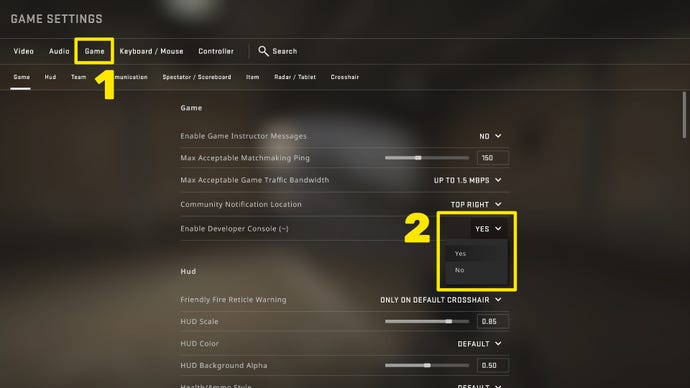
Once you’ve set “Enable Developer Console” to “YES” in the Settings menu, you can use the ~ hotkey to open and close the command console whenever you like once you’re in a match.
How to rebind your console key in CSGO
You can also rebind the hotkey to open the CS:GO console to something that’s easier for you to use. To do this, head back into the Settings menu but this time click on the “Keyboard / Mouse” tab.
Image credit:Rock Paper Shotgun/Valve
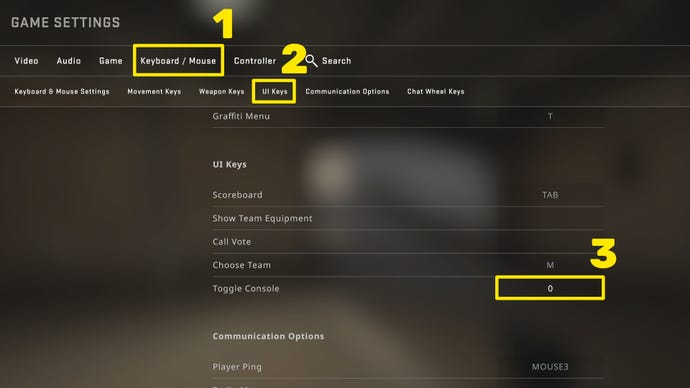
Scroll down to the “UI Keys” section, and click on the button next to “Toggle Console”. Then hit whichever key you’d like to become your new console hotkey. And that’s it! Now you can use your chosen key instead of the default ~ key to open and close the console in CS:GO.
How to use CSGO console commands
Once you have the CS:GO console enabled, you can open it up to input any number of console commands you like. In the text box at the bottom of the console, you can type any console command you like before either hitting Enter or clicking the “Submit” button.
Image credit:Rock Paper Shotgun/Valve
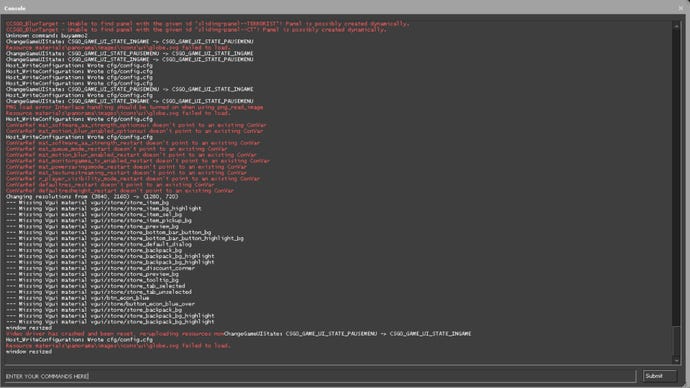
There are a great many different commands that you can enter into CS:GO’s console, including useful options for customising your crosshair, changing theCS:GO radar settings, controlling custom maps, and even improving your performance and FPS. To learn more, check out our up-to-dateCS:GO best settingsguide.
And that’s all you need to know in order to start using the powerful CS:GO console to change everything about your game! If you want more useful tips and tricks on Valve’s venerable squad FPS, check out ourCounter-Strike: Global Offensive tips and tricks. Alternatively you could consult our guide onhow to control recoil in CS:GO, or on thebest CS:GO launch optionsto use to give yourself an edge in fights.
