HomeHardwareFeatures
Here’s a list of all the Nvidia G-Sync Compatible monitors confirmed so farPlus how to enable G-Sync on a FreeSync monitor
Plus how to enable G-Sync on a FreeSync monitor
Evil Genius 2 & Its Looney Tunes Traps | My Favourite Thing In… (Evil Genius 2 Gameplay & Review)Watch on YouTube
Evil Genius 2 & Its Looney Tunes Traps | My Favourite Thing In… (Evil Genius 2 Gameplay & Review)

Before Nvidia introduced their G-Sync Compatible driver, monitors fell into two categories:Nvidia G-Sync monitors, which required you to own an Nvidia graphics card, and AMD Freesync monitors, which (you guessed it) worked with AMD graphics cards. Now, though, thanks to Nvidia’s G-Sync Compatible driver, Nvidia graphics card owners can also buy an AMD Freesync monitor and still take advantage of the screen’s variable refresh rate tech. This opens up loads more of today’sbest gaming monitorsfor you, too.
Nvidia G-Sync Compatible monitor list
Other Nvidia G-Sync compatible monitors we’ve tested:
As I mentioned earlier, the monitors listed above are only those that Nvidia themselves have deemed worthy of an official “G-Sync Compatible” badge. However, there are plenty of other FreeSync monitors out there that still provide a decent G-Sync experience over DisplayPort, even if they’re not quite worthy of a big ‘C’ Compatible sticker - such as the monitors listed below that I’ve tested myself right here at RPS. It’s not a very big list right now, but I’ll be adding more FreeSync monitors to this list as and when I get them in for testing.
How to enable G-Sync on a FreeSync monitor
If you own a FreeSync monitor and an Nvidia GeForce GTX 10-series graphics card upwards (yer GTX 1050s and above etc) and would like to try out G-Sync for yourself, then it’s surprisingly easy to enable G-Sync on your FreeSync monitor.

Next, you’ll need to make sure you’ve got the latest Nvidia GeForce driver installed. You can either download it fromNvidia’s website here, or open your GeForce Experience app and update it that way as per the image above.
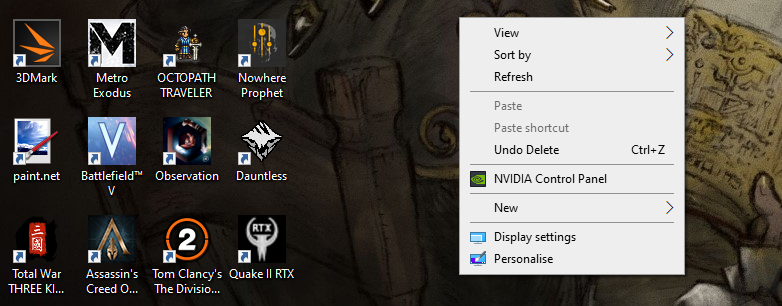
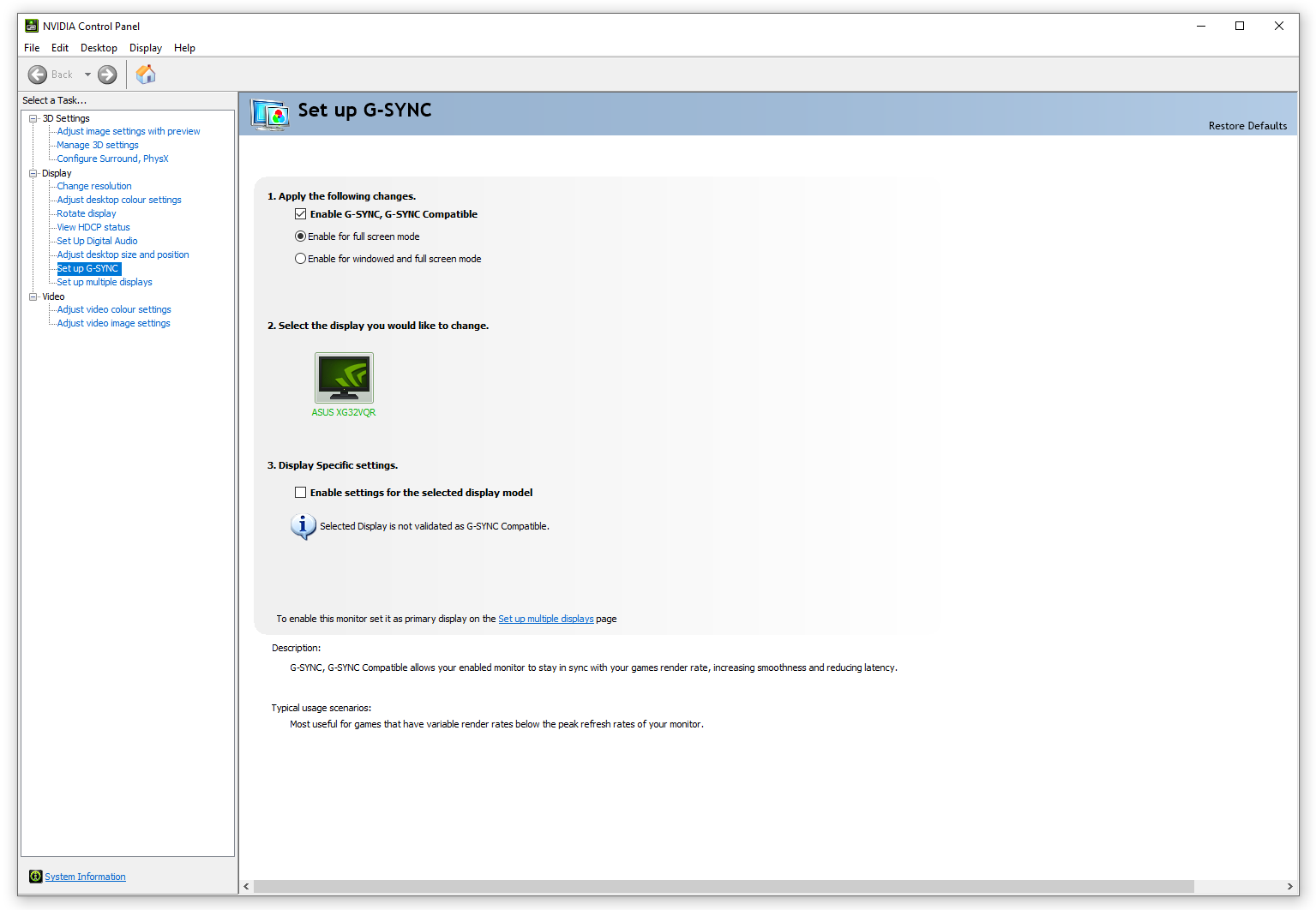
Tick the ‘Enable G-Sync, G-Sync Compatible’ box up the top, and decide whether you enable it for just fullscreen or fullscreen and windowed mode. Once you’ve picked one of those two settings, then you’ll need to tick the ‘Enable settings for the selected display model’ box below.
And that’s it! Don’t worry too much about the little message that says ‘Selected Display is not validated as G-Sync Compatible’. That’s just alerting you that the monitor isn’t one of Nvidia’s official G-Sync Compatible monitors, so your G-Sync experience may not be the absolute bestest best available.
Of course, if you don’t end up liking your monitor’s G-Sync experience (if you find there’s flickering, pulsing or blanking, or something else that isn’t up to scratch), turning it off is simply a matter of unticking those boxes I’ve just described in your Nvidia Control Panel, or switching off your monitor’s FreeSync option.
