HomeHardwareFeaturesGod of War (2018)
God of War PC performance, recommended specs and the best settings to useAll Gungnirs blazing
All Gungnirs blazing

Fatherly axe-‘em-upGod of Waris out on PC this week, and I’ve been dragging my disappointing son around the Nine Realms to see how it copes with the jump from PlayStation to Windows. The answer: pretty well! Like previous marquee Sony portHorizon Zero Dawn, this is a game that already looked lovely on console, and the extra muscle of even a modest PC rig can deliver sizeable boosts to both visual quality and frames-per-second.
God of War - Features Trailer | PCWatch on YouTube
God of War - Features Trailer | PC

General performance seems good too, without any serious dips in battles or the more wide-open Scandi lands. But before we get into that – as well as which visual settings you should change for maximum optimisation – let’s have a refresher on what PC hardware God of War is asking for.

God of War PC requirements and performance
The official PC specs are nothing if not detailed. They’re also based around God of War’s quality presets, with the Minimum specs supposedly targeting Low quality at 720p/30fps and scaling up to the Ultra specs targeting Ultra quality 4K at 60fps. Slightly confusingly, both the Recommended and High specs both target medium quality, which is actually named ‘Original’ in-game; they both have 1080p in mind, at 30fps and 60fps respectively. Lastly there’s the Performance specs, which go for the High preset, 1440p resolution and 60fps. Exhale.
God of War Minimum PC specs
God of War Recommended PC specs
God of War High PC specs
God of War Performance PC specs
God of War Ultra PC specs
So, nothing too scary here, and even if there was I reckon these specs are very much on the cautious side for the level of performance they’re apparently aiming for. For instance, my test rig has an RTX 3070 and an Intel Core i5-11600K, neither of which match the Ultra tier’s specs, but that combination was still enough to comfortably average above 60fps at 4K when using the Ultra preset.
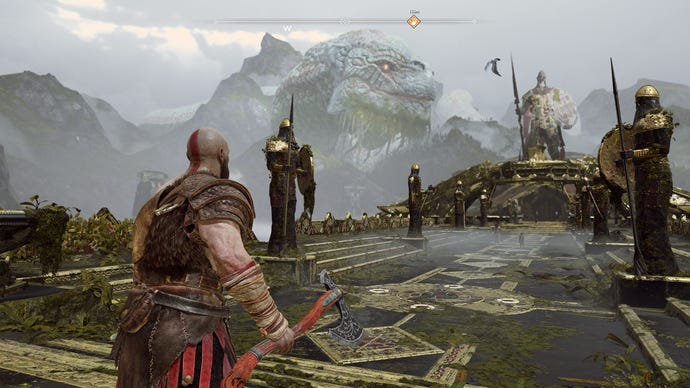
Those results I mentioned were also recorded without the aid of any upscaling tech. I’ll explain these in a bit more detail in the settings section, but you should definitely make use of DLSS if you have an Nvidia card that supports it – it’s double-digit frame rate gains in return for no quality drop whatsoever. FSR serves a similar function, and works on both AMD Radeon and non-RTX Nvidia cards, though if you take a gander at the comparison shots below you’ll see it produces a somewhat blurrier final image than DLSS. Details like Kratos’s axe, the stones in front of him and the grass and tree stumps to his left all lack sharpness compared to the native image and the equivalent DLSS settings.
2560x1440, Ultra quality, no upscaling

2560x1440, Ultra quality, DLSS on Quality
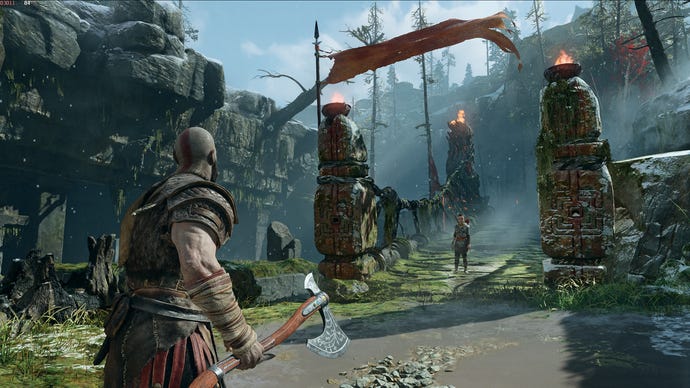
2560x1440, Ultra quality, FSR on Ultra Quality

If you’re really struggling to hit 60fps, it’s arguably still worth whacking on FSR anyway; I’d just stick with the highest ‘Ultra Quality’ setting to minimise that blurriness. One common feature God of War is missing is the ability to tweak the standard anti-aliasing, though whatever it uses – a proprietary TAA, from the looks of things – is commendably implemented itself, with no nasty blurring or ghosting.
3440x1440, Ultra quality, no upscaling
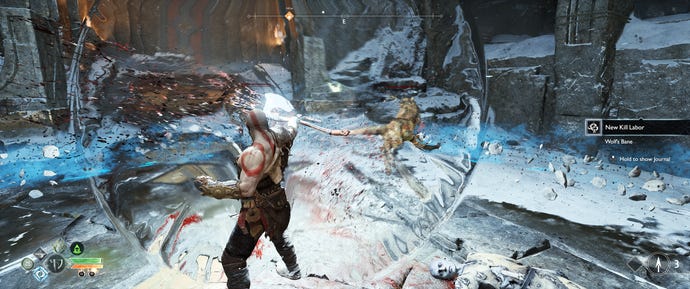
3440x1440, Ultra quality, no upscaling
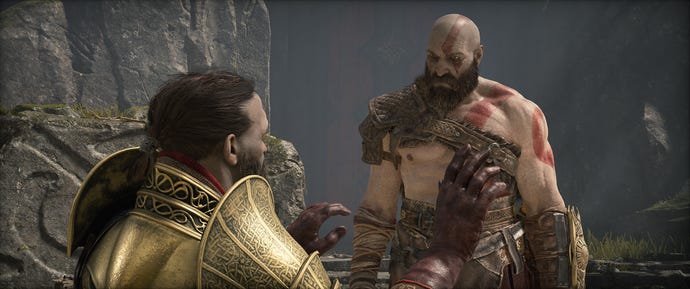
Ultrawide support is all fine and dandy too. The UI repositions itself correctly, and there’s not a black bar to be seen, whether in-game or on the menu or loading screens.

God of War: best settings guide
Unlike the other big console-to-PC port released this week,Monster Hunter Rise, God of War keeps its settings simple with four quality presets and seven individual quality settings (not counting DLSS and FSR, or fluff like motion blur and film grain). Even so, these cover quite a few direct upgrades that weren’t even present in the PS5 version, like higher-resolution shadows and more accurate screen space reflections. These are up for grabs on the Ultra and High presets; the Original preset essentially copies the PS4 version’s detail level, while Low makes further cuts to help the game run on basic hardware.
All that being said, there’s not a huge difference in overall quality between each preset; Ultra has the best ambient occlusion if you look hard enough, but High looks almost as good. You’d more easily notice the simplified lighting and shadows of Original compared to High, though in turn, Low isn’t a very big step down from Original. Unless you’re in an area with lots of reflective surfaces, like puddles and polished floors, where Low’s disabled reflection tech loses a lot of shiny detailing.
2560x1440, Ultra quality, no upscaling

2560x1440, High quality, no upscaling
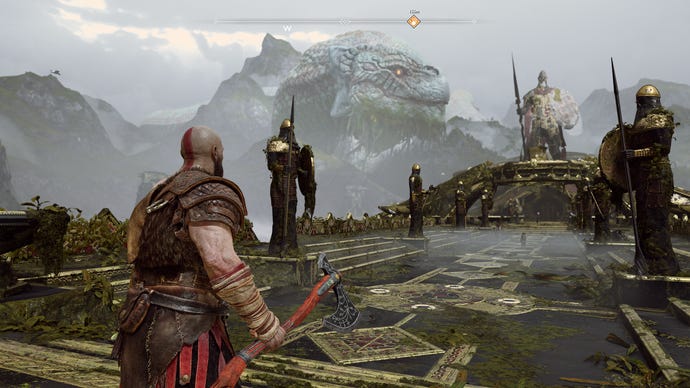
2560x1440, Original quality, no upscaling
2560x1440, Low quality, no upscaling

Texture quality:This is one you can leave turned up, as dropping from Ultra to Low only got me an extra two frames per second - a difference of just barely over 2%. The Original setting yielded the exact same result.
Anisotropic Filter:Texture filtering quality, basically. The Original setting gave me an extra 2% performance and Minimum an extra 6%, so it might be worth lowering if you’re really struggling, but there are better alternatives.
Shadows:This is perhaps the most visually noticeable setting to turn down, as it affects both the resolution and filtering of dynamic shadows. As such , it would be a shame to make cuts here, though there’s no denying how dropping from Ultra to Original gave me a sizeable 14% performance push.
Ambient Occlusion:You can disable this for a small boost – 5% on my test rig – but it’s something of an all-or-nothing choice, as simply lowering it from Ultra to Original won’t have a noticeable impact on performance. Shadowy spots do look better with a dab of AO, so leave its removal as a last resort.
Motion Blur:I’ll admit I wasn’t very scientific here, because as a seasoned blur-hater I turned it off before conducting the ‘control’ testing of the presets. Nevertheless, know that it doesn’t affect performance at all, even when cranked up to the maximum setting of 10. It’s also a relatively subtle blur effect, in fairness.
FidelityFX Super Resolution:As explained above, FSR doesn’t look as crisp as DLSS, but can easily enhance performance in a pinch. In fact, its two highest settings performed almost identically on FPS terms, with the Quality setting adding 24% and the Ultra Quality setting adding 16%.
Looking back at those initial preset tests, I’d suggest that the performance gap between Ultra and High is wide enough that you should perhaps start with the latter as a starting point. But you can safely crank up individual settings like Texture Quality, Reflections and Ambient Occlusion, if you want.
As for potential reductions, lowering Shadows quality will get you the most frames in the least steps, so try dropping down to Original quality if you’re not hitting the mark. Lowering Atmospherics will also give big gains for minimal fidelity loss, and Model Quality can afford to drop to Original level as well.
