HomeGuidesBiomutant
Biomutant Photo Mode: how to use Photo ModeLearn how to enable and use Photo Mode in Biomutant
Learn how to enable and use Photo Mode in Biomutant
Biomutantis many things, but first and foremost in my mind is this: it’s a very pretty game. So it makes perfect sense that developers Experiment 101 added an in-game Photo Mode for you to take lots of gorgeous shots throughout your journey.Learnhow to use Photo Mode in Biomutantand everything you can do with it below. I’ll also show youwhere you can find your saved photosand screenshots.Biomutant Is An Unfocused Open World Game | Biomutant ReviewWatch on YouTubeHow to use Photo Mode in BiomutantThere are three ways to enable Photo Mode inBiomutant:Hit ESC to bring up the pause menu, and click “Photo Mode”.If you’re on controller, click down both thumbsticks simultaneously to enter Photo Mode.Set up your own dedicated Photo Mode key for either keyboard or mouse in the “Mapping” tab of the Settings menu.However you decide to do it, this will bring up the Photo Mode, which allows you to position the camera exactly where you want it near your character. You can only travel a certain distance away from your character’s position, but otherwise there’s a fair amount you can do. You can zoom in and out, rotate the camera, and toggle a Depth of Field effect on or off.When you’re ready, you can hit Enter (or A on Xbox Controller) to take the photo.Biomutant tips and tricksBiomutant best classBiomutant tribesBiomutant Upgrade Bench locationsHow to glideHow to turn off narratorHow to change difficultyBiomutant New Game PlusBiomutant DLCHow to fast travelHow to find your Biomutant photos on your computerYour photos are stored in your AppData file. To view them, just open up Windows Explorer and type the following into the search bar:%localappdata%\Biomutant\Saved\Screenshots\WindowsNoEditorThen hit Enter. You’ll be brought to your Biomutant screenshots folder. I’d recommend either creating a shortcut or pinning this folder to your Quick Access so you can reach it more easily. Alternatively, you could always just do what I do: instead of taking the photo in Biomutant, just hide the UI with Tab (or Y on Xbox Controller), and then take a manual screenshot.That wraps up this quick how-to on the Biomutant Photo Mode and how to use it to capture all sorts of beautiful shots. For more on Biomutant, check out our pages onhow to change appearance in Biomutant, and how to beat thePorky Puff boss fight.
Biomutantis many things, but first and foremost in my mind is this: it’s a very pretty game. So it makes perfect sense that developers Experiment 101 added an in-game Photo Mode for you to take lots of gorgeous shots throughout your journey.Learnhow to use Photo Mode in Biomutantand everything you can do with it below. I’ll also show youwhere you can find your saved photosand screenshots.Biomutant Is An Unfocused Open World Game | Biomutant ReviewWatch on YouTubeHow to use Photo Mode in BiomutantThere are three ways to enable Photo Mode inBiomutant:Hit ESC to bring up the pause menu, and click “Photo Mode”.If you’re on controller, click down both thumbsticks simultaneously to enter Photo Mode.Set up your own dedicated Photo Mode key for either keyboard or mouse in the “Mapping” tab of the Settings menu.However you decide to do it, this will bring up the Photo Mode, which allows you to position the camera exactly where you want it near your character. You can only travel a certain distance away from your character’s position, but otherwise there’s a fair amount you can do. You can zoom in and out, rotate the camera, and toggle a Depth of Field effect on or off.When you’re ready, you can hit Enter (or A on Xbox Controller) to take the photo.Biomutant tips and tricksBiomutant best classBiomutant tribesBiomutant Upgrade Bench locationsHow to glideHow to turn off narratorHow to change difficultyBiomutant New Game PlusBiomutant DLCHow to fast travelHow to find your Biomutant photos on your computerYour photos are stored in your AppData file. To view them, just open up Windows Explorer and type the following into the search bar:%localappdata%\Biomutant\Saved\Screenshots\WindowsNoEditorThen hit Enter. You’ll be brought to your Biomutant screenshots folder. I’d recommend either creating a shortcut or pinning this folder to your Quick Access so you can reach it more easily. Alternatively, you could always just do what I do: instead of taking the photo in Biomutant, just hide the UI with Tab (or Y on Xbox Controller), and then take a manual screenshot.That wraps up this quick how-to on the Biomutant Photo Mode and how to use it to capture all sorts of beautiful shots. For more on Biomutant, check out our pages onhow to change appearance in Biomutant, and how to beat thePorky Puff boss fight.
Biomutantis many things, but first and foremost in my mind is this: it’s a very pretty game. So it makes perfect sense that developers Experiment 101 added an in-game Photo Mode for you to take lots of gorgeous shots throughout your journey.
Learnhow to use Photo Mode in Biomutantand everything you can do with it below. I’ll also show youwhere you can find your saved photosand screenshots.
Biomutant Is An Unfocused Open World Game | Biomutant ReviewWatch on YouTube
Biomutant Is An Unfocused Open World Game | Biomutant Review

How to use Photo Mode in Biomutant
There are three ways to enable Photo Mode inBiomutant:
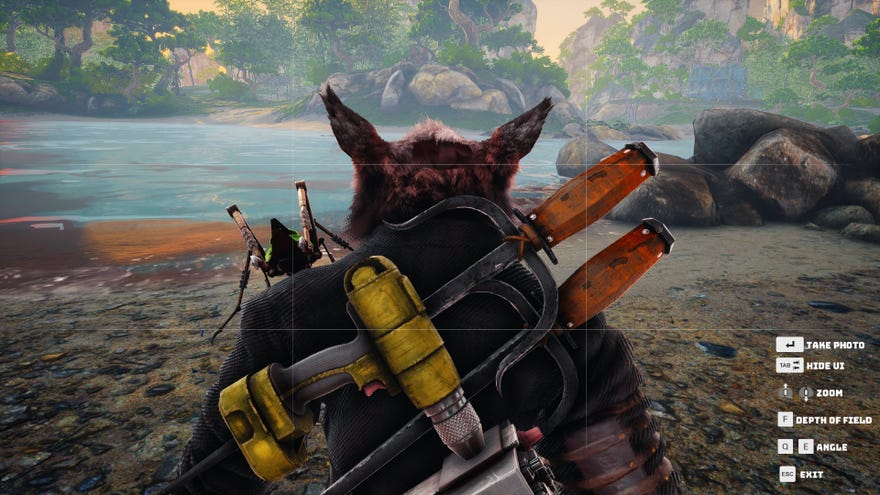
However you decide to do it, this will bring up the Photo Mode, which allows you to position the camera exactly where you want it near your character. You can only travel a certain distance away from your character’s position, but otherwise there’s a fair amount you can do. You can zoom in and out, rotate the camera, and toggle a Depth of Field effect on or off.
When you’re ready, you can hit Enter (or A on Xbox Controller) to take the photo.
How to find your Biomutant photos on your computer
Your photos are stored in your AppData file. To view them, just open up Windows Explorer and type the following into the search bar:
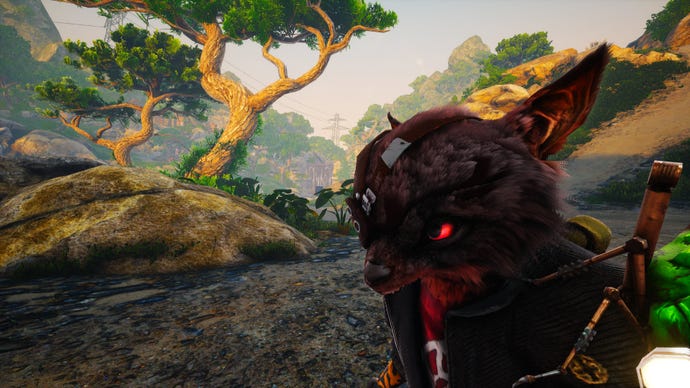
Then hit Enter. You’ll be brought to your Biomutant screenshots folder. I’d recommend either creating a shortcut or pinning this folder to your Quick Access so you can reach it more easily. Alternatively, you could always just do what I do: instead of taking the photo in Biomutant, just hide the UI with Tab (or Y on Xbox Controller), and then take a manual screenshot.
That wraps up this quick how-to on the Biomutant Photo Mode and how to use it to capture all sorts of beautiful shots. For more on Biomutant, check out our pages onhow to change appearance in Biomutant, and how to beat thePorky Puff boss fight.
