HomeHardwareFeaturesBack 4 Blood
Back 4 Blood PC performance: the best settings to changeThrough the fire and the frames
Through the fire and the frames
Back 4 Blood Gameplay and Impressions | Better Than Left 4 DeadWatch on YouTube
Back 4 Blood Gameplay and Impressions | Better Than Left 4 Dead

All the PC essentials are here, like an uncapped framerate and FoV adjustment, as well as some pretty good 21:9 ultrawide support: cutscenes and menus stick to 16:9 but otherwise it works well, with appropriate UI positioning. There graphics quality settings are relatively streamlined, though if you don’t want to just slap on a preset it’s still possible to make specific tweaks. Further down we’ll look at the best settings to change in order to effectively improve performance.
Back 4 Blood PC requirements
First, though, let’s take a peek at what Turtle Rock are asking of your rig. Nothing too scary here, and in fact I’d put them on the pessimistic side: the minimum spec apparently targets 60fps at 1080p with the Low quality preset, but I tested a GTX 1050 Ti and it averaged close to 90fps with the High preset and FSR on its ‘Quality’ setting.
The recommended spec also targets 60fps at 1080p, along with the High preset. I didn’t have either a GTX 970 or Radeon RX 590 to hand, but I did try the 8GB RX 580, and with FSR helping out it could average 130fps at 1080p. 90fps at 1440p too, though for really slick performance at this resolution I’d suggest an RTX 2060 / Radeon RX 5700 or above.
Back 4 Blood minimum PC requirements
Back 4 Blood recommended PC requirements
The best Back 4 Blood PC settings
2560x1440 native, Epic quality
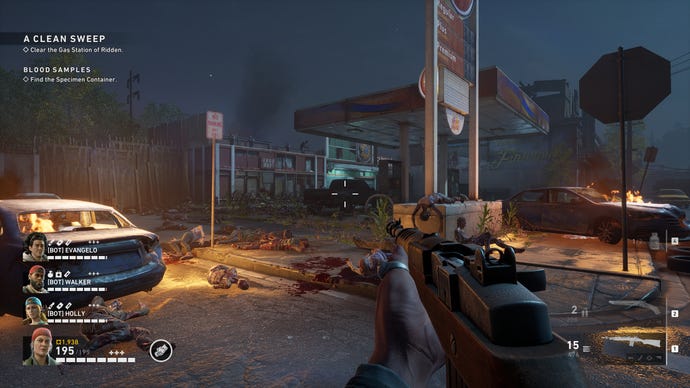
2560x1440 native, High quality

2560x1440 native, Medium quality

2560x1440 native, Low quality

Here are which settings you can change to boost performance, and which ones can be left alone:
Upscaling –Renders the game at a lower resolution to save performance, then upscales the image to match the native resolution. Besides FSR and DLSS, there’s also a spatial upscaling option built into the engine itself, though for pure frame rate gains your best bet is FSR on the Quality setting. DLSS makes distant objects look sharper, and includes its own anti-aliasing instead of simply upscaling TAA, though its Performance setting ‘only’ gave me a 8% frame rate increase to FSR Quality’s 35%. DLSS’ Ultra Performance mode bumped the gains up to 13%, but looked markedly lower-res.
Setting FSR to Ultra Quality also provides a boost, albeit a smaller one than Quality, in exchange for a negligible quality difference. The lower FSR settings, Balanced and Performance, also fall far shorter of replicating the look of native res. FSR Quality therefore delivers the best blend of speed and fidelity.
3840x2160, Epic quality, FSR on Quality setting
3840x2160, Epic quality, DLSS on Balanced setting

Anti-aliasing –Unless you’re overriding this with DLSS, you can choose between TAA and FXAA (or turn it off, if you’re an anarchist). FXAA is very slightly easier on the GPU, but when pairing TAA with sharpening (see below), you get much smoother-looking edges.
Sharpening –Engage or switch off the FidelityFX sharpening filter. Leave this on if you’re using TAA, as it will negate the blurring effect while keeping jagged edges at bay. There’s no performance impact, either.
Motion blur –Ditch this. Almost any graphics card from the last half-decade will run Back 4 Blood fast enough that there’s little need to hide low frame rates with blur, so the 4% performance gain from disabling it is a no-brainer.
Adaptive FX quality –One of Back 4 Blood’s more unusual graphical inclusions, this can dynamically reduce the quality of visual effects in response to frame rate drops; think of it like adaptive resolution, but just for effects. It makes sense as the likes of molotovs and explosions can take a bite out of your frame rate in Back 4 Blood, though in my testing I couldn’t record it making much of a difference at all. I’d leave this switched off and use tinker with the Effects Quality setting (see below) instead.
Quality –The big gun. Four presets – Low, Medium, High, and Epic (urrrggghhh) – that mainly control the five individual quality settings detailed below, though Medium and Low also enable Adaptive FX if it isn’t already.
To tell the truth, High and Medium are not major downgrades from Epic, which so don’t be shy about turning them down - using High got me 11% more frames, while Medium bagged an extra 20%. Low obviously made for the biggest gain, a widowmaking 61%, and does give up a fair deal of instantly noticeable detail. That said, it’s not hideous either, so turning some of the individual settings down to Low can be a good way to achieve meaningful performance boosts with only a small visual impact. Others, though, are best left turned up.
Post-processing Quality –This is a good example: setting post-processing to Low is enough for a 20% performance gain, even with everything else left on Epic. The game doesn’t specify which effects exactly this setting covers, but the visible difference is hard to notice while playing normally.
Texture Quality –This is, admittedly, one of the more striking settings to drop down to Low. As doing so only nets a modest 5% performance increase over Epic, you may as well leave textures on Medium.
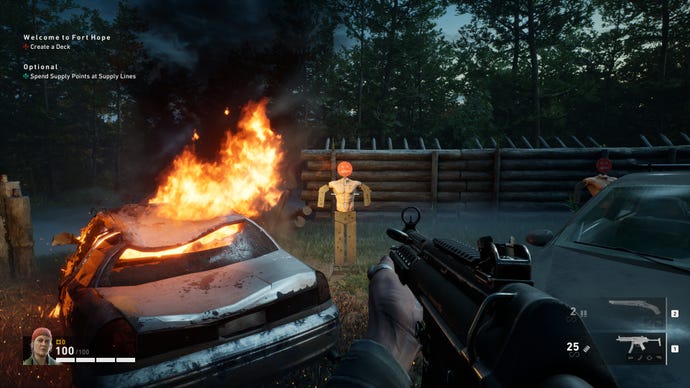
Effects Quality –Fire, it turns out, is the natural enemy of Back 4 Blood performance. Considering how much of it shows up, consider dropping this to Low if you’re struggling.
Shadow Quality –Dropping this to Low repaid me with 5% extra performance, which isn’t much, though I can’t say I noticed a significant fidelity drop either. Lighting still looks pretty good, so make the cut if you feel like it.
Foliage Quality –There’s more greenery than you’d think in Back 4 Blood, even on its most urban maps, though the Low setting cuts a lot of it out entirely. This results in a stark loss of environmental detail, so unless you desperately need the 5% performance bonus of toning it down, go for Medium or above.